
Azure Virtual Desktop Architecture - Deployment - Azure Cloud | MyTechClouds
Document - Reference
This document provides a comprehensive reference guide for Azure Virtual Desktop (AVD) architecture, deployment, security, monitoring, validation, and operational best practices. The following topics, categories, and subcategories are covered in detail thr
Introduction to Azure Virtual Desktop (AVD)
Enterprise Architecture Overview
On-Premises Infrastructure
Azure Network Architecture
Hybrid Connectivity (VPN / ExpressRoute)
Azure Firewall Implementation
Identity & Access Management
Azure Virtual Desktop Deployment
Session Host Deployment
Golden Image Management
Domain Join Configuration
FSLogix Profile Management
Storage Architecture
Monitoring & Observability
Diagnostic Settings Configuration
Security Hardening
Validation & Testing
User Access & Login Flow
End-to-End Traffic Flow
Operational Best Practices
Production Readiness Checklist
Azure Governance & Identity Management
Azure Monitoring & Logging
Conclusion and Deployment Summary
Note: Each section includes detailed architecture diagrams, deployment procedures, configuration steps, validation tests, security controls, troubleshooting guidance, and enterprise best practices based on a real-world Azure Virtual Desktop implementation.
Introduction
As organizations adopt hybrid work models, secure and seamless access to business applications has become essential. Azure Virtual Desktop (AVD) provides a scalable and secure virtual desktop solution that enables users to access corporate resources from anywhere.
This architecture demonstrates a production-ready Azure Virtual Desktop deployment designed by MyTechClouds, featuring a Hub-and-Spoke network topology, Azure Firewall, Microsoft Entra ID integration, FSLogix profile management, centralized security controls, and secure connectivity between on-premises infrastructure and Azure. The design ensures high availability, enhanced security, simplified management, and an optimized user experience for enterprise workloads.
Architecture Design
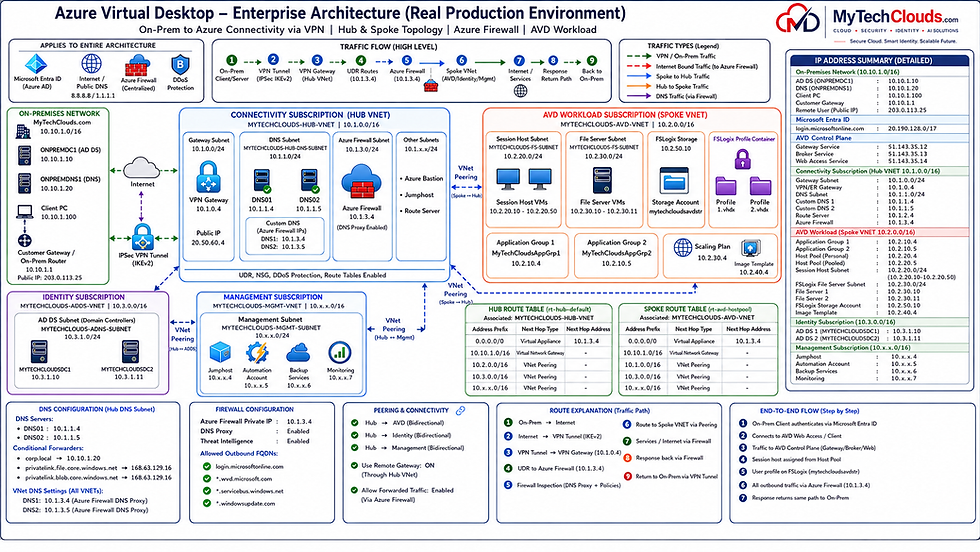
The Azure Virtual Desktop (AVD) solution is designed using a secure and scalable Hub-and-Spoke architecture, a widely adopted enterprise networking model in Microsoft Azure. This architecture centralizes networking, security, identity, and management services within a dedicated Hub Virtual Network while isolating application and workload components into separate Spoke Virtual Networks. The design provides enhanced security, simplified management, centralized governance, and improved scalability for enterprise environments.
At the core of the architecture is the Connectivity Subscription, which hosts the Hub Virtual Network (10.1.0.0/16). The Hub acts as the central transit network for all Azure resources and serves as the primary point for connectivity, routing, DNS resolution, security inspection, and internet access. Shared infrastructure components such as the Azure VPN Gateway, Azure Firewall, DNS services, Azure Bastion, route tables, and management services are deployed within the Hub, allowing all connected workloads to consume these services without duplication.
To establish secure hybrid connectivity, the on-premises corporate network (10.10.0.0/16) is connected to Azure through an IPSec IKEv2 Site-to-Site VPN tunnel. The Azure VPN Gateway (10.1.0.4) terminates the VPN connection and provides secure communication between on-premises resources and Azure-hosted services. This allows users, servers, and applications located within the datacenter to access Azure resources using private IP addresses while maintaining encrypted communication across the public internet.
Security is centralized through Azure Firewall (10.1.3.4), which serves as the primary inspection and control point for all inbound and outbound traffic. All internet-bound traffic from Azure workloads is routed through Azure Firewall using User Defined Routes (UDRs). The firewall provides application filtering, FQDN filtering, DNS Proxy services, threat intelligence, logging, monitoring, and policy enforcement. This approach ensures consistent security controls across all Azure subscriptions and workload environments.
The architecture also incorporates a dedicated Identity Subscription (10.3.0.0/16) containing two Azure-based Domain Controllers, MYTECHCLOUDSDC1 (10.3.1.10) and MYTECHCLOUDSDC2 (10.3.1.11). These systems provide authentication, directory services, DNS integration, and identity management for Azure workloads while maintaining connectivity with the on-premises Active Directory environment. This dedicated identity layer improves security, availability, and administrative separation from production workloads.
The AVD Workload Subscription (10.2.0.0/16) hosts the Azure Virtual Desktop platform. Session Host virtual machines are deployed within the Session Host subnet (10.2.20.0/24) and deliver virtual desktops and applications to end users. File Servers located within the File Server subnet (10.2.30.0/24) provide storage services for user data and FSLogix profile containers. User profiles are stored centrally within Azure Storage, enabling roaming profiles and a consistent user experience regardless of which Session Host processes the user's connection.
To support operational management, a dedicated Management Subscription hosts administrative services including Jump Hosts, Automation Accounts, Backup Services, and Monitoring solutions. This ensures administrative access is separated from production workloads and provides a secure management framework for ongoing operations.
All Azure Virtual Networks are interconnected through VNet Peering, allowing secure communication between the Hub, Identity, Management, and AVD workload environments. The Hub remains the central point for routing, DNS resolution, internet access, and security inspection. This design creates a highly available, secure, and enterprise-ready Azure Virtual Desktop platform capable of supporting hybrid connectivity, centralized security controls, and scalable virtual desktop services.
The Azure Virtual Desktop (AVD) environment is built using a Hub-and-Spoke architecture that provides centralized networking, security, identity, and management services while isolating workload components into dedicated subscriptions and virtual networks.
The solution integrates the on-premises datacenter (MyTechClouds.com) with Microsoft Azure through a secure IPSec IKEv2 Site-to-Site VPN tunnel between the Customer Gateway (203.0.113.25) and the Azure VPN Gateway (20.50.60.4).
Architecture Design & Network Connectivity - Azure Cloud & On-premise
The hybrid connectivity between the on-premises datacenter and Microsoft Azure is established through a secure IPSec IKEv2 Site-to-Site VPN tunnel. This encrypted connection enables seamless communication between on-premises resources located within the 10.10.0.0/16 network and Azure resources hosted within the Hub, Identity, Management, and Azure Virtual Desktop virtual networks.
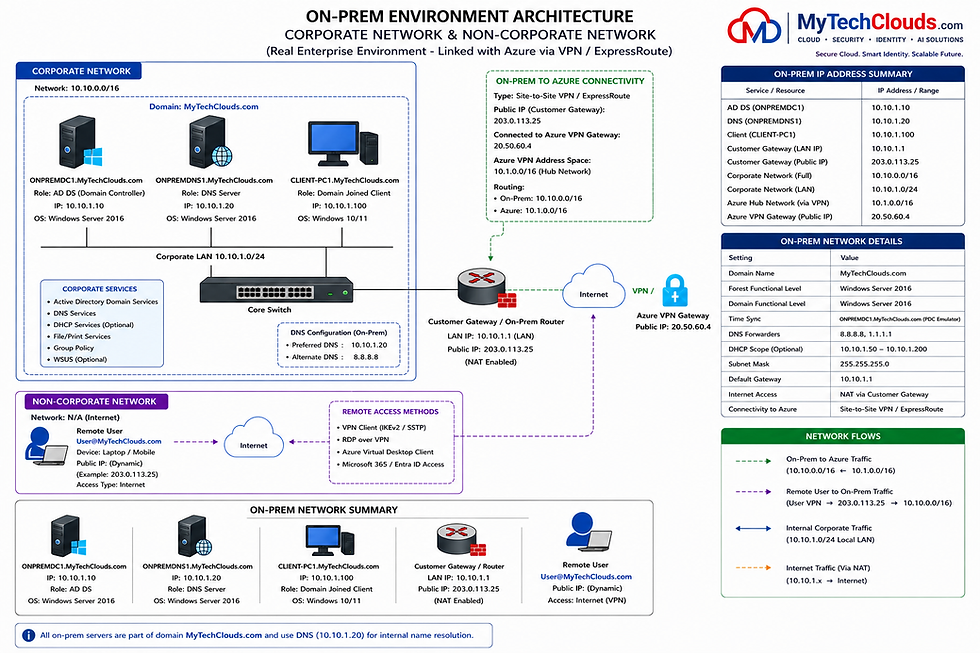
The connectivity originates from the Customer Gateway/Router (10.10.1.1) located within the corporate network. The gateway uses the public IP address 203.0.113.25 to establish a VPN connection to the Azure VPN Gateway (20.50.60.4) deployed within the Azure Hub Virtual Network (10.1.0.0/16). Once the tunnel is established, routing is configured to allow secure private communication between the on-premises and Azure address spaces.
Network Flow
The network traffic follows a centralized routing model through the Azure Hub Virtual Network:
A user, server, or application within the on-premises network initiates communication.
Traffic is forwarded to the Customer Gateway (10.10.1.1).
The traffic is encrypted and transmitted through the IPSec VPN tunnel.
The Azure VPN Gateway receives and decrypts the traffic within the Hub VNet.
Azure route tables direct traffic to the appropriate destination network, such as:
Identity VNet (10.3.0.0/16)
Management VNet
Azure Virtual Desktop VNet (10.2.0.0/16)
All internet-bound Azure traffic is routed through Azure Firewall (10.1.3.4) for security inspection and policy enforcement.
Response traffic follows the same path back through Azure VPN Gateway and the Site-to-Site VPN tunnel to the on-premises network.
Hybrid Resource Access
This connectivity model enables:
On-premises users to access Azure Virtual Desktop resources using private IP connectivity.
Azure Virtual Desktop Session Hosts to communicate with Active Directory and DNS services.
Secure access to Azure File Servers and FSLogix Profile Storage.
Centralized authentication across on-premises and Azure environments.
Consistent DNS resolution and application connectivity across the hybrid infrastructure.
By centralizing connectivity through the Hub Virtual Network and Azure VPN Gateway, the architecture provides secure, reliable, and scalable communication between on-premises infrastructure and Microsoft Azure while maintaining a single controlled path for routing and security inspection.
On-Premises Active Directory & DNS Validation Testing
Following the deployment of the on-premises infrastructure, comprehensive validation testing was performed to verify Active Directory functionality, DNS resolution, client connectivity, and remote access. The objective was to ensure that all core infrastructure services were operational and capable of supporting hybrid connectivity with Microsoft Azure.

Active Directory Validation
The Domain Controller ONPREMDC1.MyTechClouds.com (10.10.1.10) was validated to confirm proper Active Directory Domain Services (AD DS) functionality. Testing verified successful communication between domain-joined systems and the Domain Controller, ensuring that authentication services, Group Policy processing,
Kerberos authentication, and domain resource access were functioning correctly.
Network connectivity tests from both the DNS Server and Client Machine successfully reached the Domain Controller with zero packet loss, confirming healthy communication across the corporate LAN.
DNS Validation
The DNS Server ONPREMDNS1.MyTechClouds.com (10.10.1.20) was tested to verify internal name resolution within the MyTechClouds.com domain. DNS validation included forward lookup testing, host record resolution, and communication with domain-joined systems.
An NSLOOKUP test successfully resolved CLIENT-PC1.MyTechClouds.com to 10.10.1.100, confirming that DNS records were properly registered and that internal name resolution was functioning as expected. This validation is critical for Active Directory operations, as authentication and service discovery rely heavily on DNS.
Client Connectivity Testing
The domain-joined workstation CLIENT-PC1.MyTechClouds.com (10.10.1.100) was validated to ensure successful communication with both Active Directory and DNS services. Connectivity tests confirmed that the client could:
Reach the Domain Controller (10.10.1.10)
Resolve DNS records through ONPREMDNS1 (10.10.1.20)
Access domain resources
Communicate across the corporate network
Successful ICMP responses with no packet loss verified stable network connectivity and proper routing within the on-premises environment.
Remote Access Validation
A remote user connected securely to the corporate network through the configured VPN connection. The VPN session was successfully established and assigned an internal IP address within the corporate network range. Connectivity testing confirmed access to the Customer Gateway (10.10.1.1), Domain Controller (10.10.1.10), DNS Server (10.10.1.20), and domain-joined client systems.
This validation confirmed that remote users can securely access corporate resources while maintaining the same authentication and DNS experience as users connected directly to the corporate network
Azure Platform Subscriptions Details
To ensure proper governance, security, operational control, and cost management, the Azure environment is organized using a centralized Management Group hierarchy. All Azure subscriptions are governed under the mytechclouds-management-grp Management Group, providing a consistent framework for policy enforcement, role-based access control (RBAC), resource organization, and subscription lifecycle management.
The platform consists of multiple dedicated subscriptions, each serving a specific business and technical function. This subscription-based design follows Microsoft Azure Enterprise Landing Zone principles, allowing workloads to be logically separated while maintaining centralized governance and operational oversight.

Connectivity Subscription
The Connectivity Subscription hosts the shared networking infrastructure that serves as the foundation of the Azure environment. This subscription contains the Hub Virtual Network, Azure VPN Gateway, Azure Firewall, DNS services, route tables, and other shared network components. All workload subscriptions leverage this centralized connectivity layer for secure communication, internet access, DNS resolution, and hybrid connectivity with the on-premises datacenter.
Identity Subscription
The Identity Subscription is dedicated to authentication and directory services. It hosts Azure-based Domain Controllers, DNS-integrated identity services, and supporting infrastructure required for Active Directory operations. Separating identity services into a dedicated subscription improves security, administrative control, and operational resilience.
AVD Workload Subscription
The Azure Virtual Desktop Workload Subscription hosts all virtual desktop infrastructure components, including Session Hosts, File Servers, FSLogix Profile Storage, Application Groups, Host Pools, and Scaling Plans. Isolating AVD resources into a dedicated subscription simplifies management, security administration, capacity planning, and cost tracking for end-user computing services.
Management Subscription
The Management Subscription contains centralized operational services used across the Azure platform. This includes Jump Hosts, Azure Automation, Backup Services, Monitoring Solutions, Log Analytics Workspaces, and administrative tools. The management layer provides secure administration and operational visibility without exposing production workloads.
Security Subscription
The Security Subscription is reserved for centralized security services and security operations. Security tooling, monitoring solutions, security analytics, compliance services, and future security enhancements can be deployed independently from production workloads while maintaining centralized visibility across the Azure estate.
Backup and Disaster Recovery Subscription
The Backup-DR Subscription is used to support business continuity and disaster recovery requirements. Backup vaults, recovery services, replication services, and recovery infrastructure can be centrally managed within this subscription to ensure protection of critical workloads across the Azure platform.
Sandbox-Lab Subscription
Platform Governance Benefits
The subscription-based architecture provides several operational and governance advantages:
Centralized management through Azure Management Groups
Improved security and workload isolation
Independent cost tracking and budgeting per workload
Simplified role-based access control (RBAC)
Consistent policy enforcement across subscriptions
Easier resource lifecycle management
Better operational separation between production, management, security, and testing environments
Alignment with Microsoft Azure Enterprise Scale Landing Zone best practices
This structured subscription model establishes a scalable foundation for managing Azure Virtual Desktop, networking, identity, security, and future cloud workloads while maintaining governance, compliance, and operational efficiency across the Azure platform.
On-Premises Internet Access via Azure Firewall – DNS, Routing & Connectivity Validation
To enhance security, monitoring, and centralized internet control, outbound internet traffic from the on-premises environment is routed through Microsoft Azure using the existing Site-to-Site VPN connection and Azure Firewall. This design allows internet-bound traffic originating from on-premises systems to be inspected, logged, filtered, and controlled by Azure Firewall before reaching external destinations.
The test was performed from an on-premises virtual machine (10.10.1.100) located within the corporate network (10.10.0.0/16). The virtual machine uses the Customer Gateway (10.10.1.1) as its default gateway. When internet traffic is initiated, the request is forwarded to the on-premises router and encrypted through the IPSec IKEv2 VPN tunnel established between the Customer Gateway (203.0.113.25) and the Azure VPN Gateway (20.50.60.4) deployed within the Azure Hub Virtual Network.
After entering Azure through the VPN Gateway, User Defined Routes (UDRs) configured within the Hub network direct the traffic to Azure Firewall (10.1.3.4). Azure Firewall acts as the centralized internet egress point for both Azure and on-premises workloads. Before allowing outbound communication, the firewall evaluates the request against configured Network Rules, Application Rules, Threat Intelligence policies, and DNS-based filtering controls.

DNS Resolution Through Azure Firewall
Azure Firewall is configured with DNS Proxy enabled, allowing DNS requests to be centrally processed, inspected, and logged. Azure workloads use the Azure Firewall DNS Proxy addresses (10.1.3.4 and 10.1.3.5) for name resolution.
The firewall forwards DNS queries to the Hub DNS servers:
DNS01 (10.1.1.4)
DNS02 (10.1.1.5)
and when required, forwards requests to approved upstream resolvers such as:
8.8.8.8
1.1.1.1
This architecture ensures consistent DNS resolution, centralized DNS logging, and enforcement of enterprise security policies across the hybrid environment.
Azure Firewall Traffic Inspection
Before allowing outbound communication, Azure Firewall evaluates traffic against configured Network Rules and Application Rules. During validation, outbound access to approved destinations such as:
Microsoft 365 services
Azure services
Windows Update services
was successfully inspected and allowed through the configured firewall policy.
Firewall logs confirmed that traffic originating from the on-premises VM (10.10.1.100) was processed by the configured rule collection before being forwarded to the internet.
Routing Validation
Route table validation confirmed that:
On-Premises Network (10.10.0.0/16) routes through the Azure VPN Gateway.
Internet-bound traffic (0.0.0.0/0) is forced through Azure Firewall (10.1.3.4).
Azure workload traffic follows centralized inspection through the Hub network.
Return traffic follows the same secure path back through Azure Firewall and the Site-to-Site VPN tunnel.
Connectivity Test Results
Multiple validation tests were performed to verify the complete traffic path:
Successful DNS resolution of google.com
Successful ICMP connectivity to public internet destinations
Successful traceroute through Azure Firewall
Successful HTTPS connectivity tests over TCP 443
Successful Azure Firewall log validation
Successful route table verification
The test confirmed that the on-premises virtual machine successfully accessed the internet through the following path:
On-Prem VM → Customer Gateway → IPSec VPN Tunnel → Azure VPN Gateway → Azure Firewall → Internet
This validation demonstrates that Azure Firewall is functioning as the centralized security, DNS inspection, and internet egress platform for the hybrid environment while providing complete visibility and control over outbound traffic.
Azure Firewall Configurations
Deploy Azure Firewall at IP 10.1.3.4
Allow outbound FQDNs:
Enable DNS Proxy and Threat Intelligence.
To strengthen security, improve visibility, and centralize DNS management, Azure Firewall is configured with DNS Proxy and Threat Intelligence enabled. These features ensure that DNS resolution and outbound connectivity are monitored, logged, and inspected before traffic is allowed to leave the Azure environment.
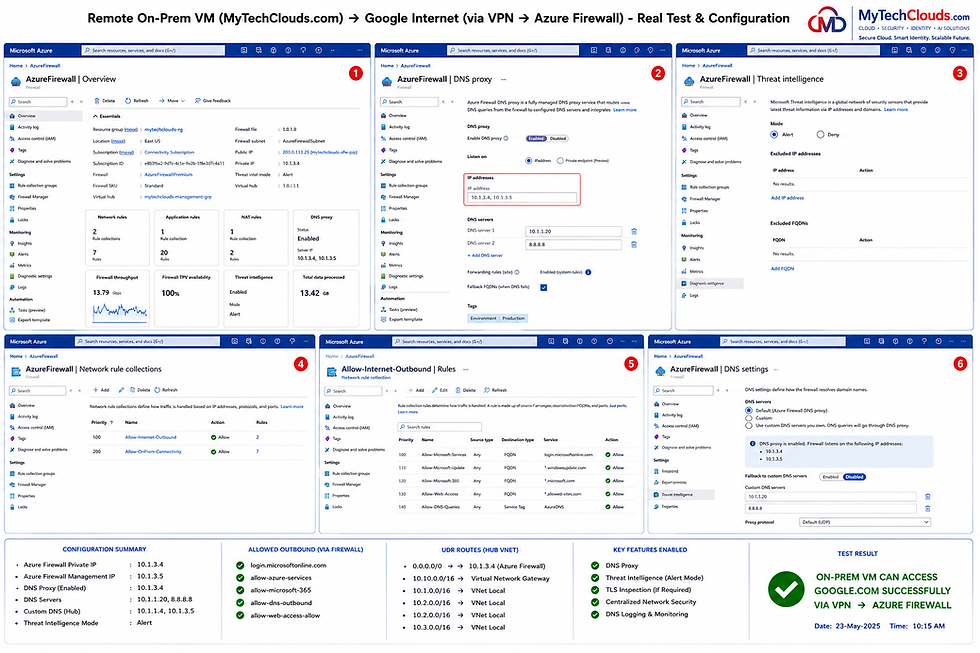
DNS Proxy Configuration
DNS Proxy is enabled on Azure Firewall, allowing the firewall to act as the centralized DNS service for Azure workloads. Rather than allowing virtual machines to communicate directly with DNS servers, all DNS queries are first sent to Azure Firewall for processing.
The Azure Virtual Network is configured to use the following DNS Proxy addresses:
Primary DNS: 10.1.3.4
Secondary DNS: 10.1.3.5
Azure Firewall then forwards DNS requests to the configured DNS servers:
On-Premises DNS Server: 10.10.1.20
Public DNS Resolver: 8.8.8.8
This configuration enables Azure workloads, Azure Virtual Desktop Session Hosts, and hybrid resources to resolve both internal and external names through a centrally managed DNS platform.
The benefits of DNS Proxy include:
Centralized DNS resolution
DNS query logging and monitoring
Hybrid name resolution between Azure and on-premises
Consistent DNS policies across all workloads
Enhanced visibility into DNS activity
Simplified DNS troubleshooting and management
Threat Intelligence Configuration
Azure Firewall Threat Intelligence is configured in Alert Mode, allowing the firewall to compare outbound connections against Microsoft's global threat intelligence feeds.
When traffic matches a known malicious IP address, domain, or threat indicator, Azure Firewall generates alerts and records the event within diagnostic logs. This provides visibility into potentially suspicious activity without interrupting legitimate business traffic.
Threat Intelligence helps identify:
Malicious IP addresses
Known command-and-control servers
Suspicious outbound connections
Malicious domains and URLs
Threat actor infrastructure
Potential compromise indicators
Security and Monitoring Benefits
By combining DNS Proxy and Threat Intelligence, Azure Firewall becomes the centralized security control point for outbound connectivity. Every DNS query and internet connection can be inspected, monitored, and evaluated against organizational security policies before traffic is permitted.
This configuration provides:
Centralized DNS management
Improved security visibility
Enhanced threat detection capabilities
Comprehensive logging and monitoring
Controlled internet access
Consistent policy enforcement across Azure and hybrid workloads
Together, these capabilities help ensure that Azure Virtual Desktop, Azure workloads, and connected on-premises systems communicate securely while maintaining visibility into DNS activity and potential security threats across the environment.
Connectivity Testing from Onprem VM towards Internet (Google.com) Via Azure Firewall - UDR's Created for this.
This validation demonstrates how internet-bound traffic from an on-premises virtual machine is securely routed through Microsoft Azure using a Site-to-Site VPN connection, Azure Firewall, DNS Proxy, and User Defined Routes (UDRs). The objective of this configuration is to centralize internet security, monitoring, DNS resolution, and outbound traffic control through Azure Firewall rather than allowing direct internet access from the on-premises environment.
The test originates from an on-premises virtual machine (10.10.1.100) located within the MyTechClouds.com corporate network (10.10.0.0/16). The server uses the Customer Gateway (10.10.1.1) as its default gateway. When the VM attempts to access Google.com, the traffic is first forwarded to the on-premises router and then encrypted through an IPSec IKEv2 Site-to-Site VPN tunnel.
The encrypted traffic is transmitted to the Azure VPN Gateway (20.50.60.4) deployed within the Hub Virtual Network (10.1.0.0/16) of the Connectivity Subscription. Once the traffic enters Azure, User Defined Routes (UDRs) redirect all internet-bound traffic (0.0.0.0/0) to Azure Firewall (10.1.3.4), making Azure Firewall the centralized internet egress point for both Azure and selected on-premises workloads.
Azure Firewall is configured with DNS Proxy enabled, allowing DNS requests to be centrally processed and logged. DNS queries are forwarded to the configured DNS servers, including the on-premises DNS server (10.10.1.20) and public DNS resolver (8.8.8.8), ensuring controlled and consistent name resolution across the hybrid environment.
Before allowing internet access, Azure Firewall evaluates traffic against configured Network Rules, Application Rules, and Threat Intelligence policies. The firewall contains outbound allow rules for approved destinations including Microsoft services, Azure services, Windows Update services, and internet destinations such as Google.com. Azure Firewall logs confirm that traffic originating from the on-premises VM (10.10.1.100) was successfully inspected and allowed through the Allow-Internet-Outbound rule collection.
The validation includes multiple tests, including Ping, Traceroute, PowerShell Test-NetConnection, route verification, and Azure Firewall log analysis. The traceroute output confirms the traffic path:
10.10.1.1 (Customer Gateway) → 20.50.60.4 (Azure VPN Gateway) → 10.1.3.4 (Azure Firewall) → Google.com
The Azure Firewall logs further verify that outbound traffic was inspected and permitted before being forwarded to the internet. Return traffic follows the same secure path through Azure Firewall and the VPN tunnel before reaching the on-premises virtual machine.
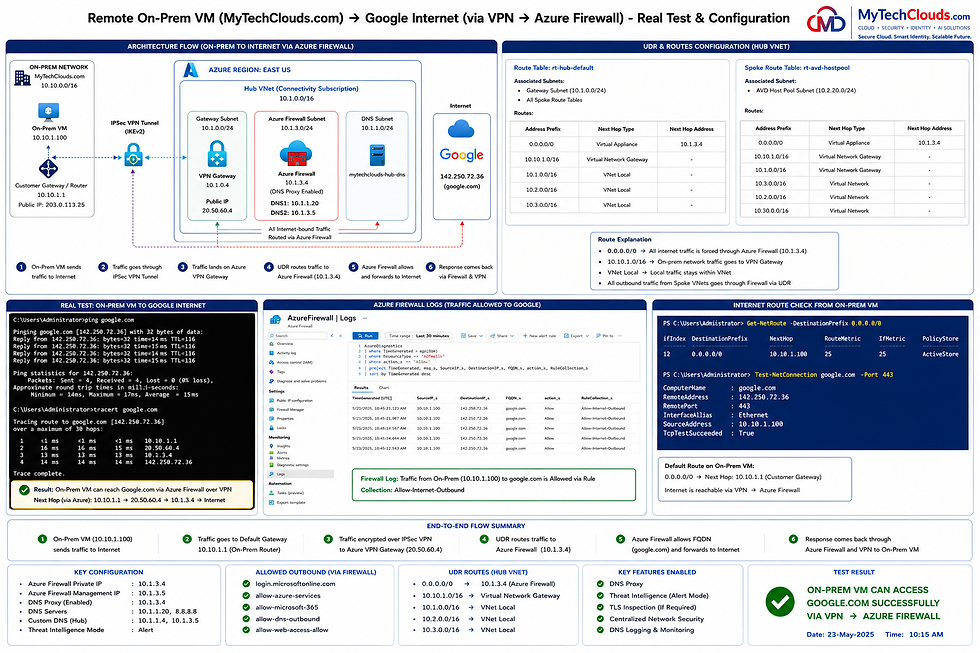
The successful completion of these tests confirms that:
Site-to-Site VPN connectivity is operational.
UDRs are correctly routing internet traffic through Azure Firewall.
Azure Firewall DNS Proxy is functioning as designed.
Azure Firewall security policies are being enforced.
Internet access is centrally controlled and monitored.
On-premises workloads can securely access external resources through Azure Firewall.
This validation demonstrates a secure hybrid networking architecture where Azure Firewall acts as the centralized security and internet egress platform, providing DNS inspection, traffic filtering, threat intelligence, logging, and policy enforcement for both Azure and on-premises environments.
AVD Workload Subscription Details
The Azure Virtual Desktop (AVD) Workload Subscription is designed to host all end-user computing resources required to deliver secure, scalable, and high-performance virtual desktops to users. The workload environment is deployed within the MyTechClouds-AVD-VNET (10.2.0.0/16) and follows a segmented network design that separates session hosts, file services, and user profile storage into dedicated subnets and services.
The AVD environment is connected to the centralized Hub Virtual Network (10.1.0.0/16) through VNet Peering, allowing secure communication with shared services such as Azure Firewall, DNS, Active Directory, monitoring, and hybrid connectivity components. All outbound internet traffic from the AVD environment is routed through Azure Firewall using User Defined Routes (UDRs), ensuring centralized security inspection and internet access control.

Session Host Infrastructure
The Session Host Subnet (MYTECHCLOUDS-SS-SUBNET) uses the address range 10.2.20.0/24 and hosts the Azure Virtual Desktop Session Host virtual machines. These multi-session Windows virtual machines provide users with access to published desktops and applications.
The Session Host pool is configured with private IP addresses ranging from 10.2.20.10 to 10.2.20.50, allowing multiple users to securely connect to their virtual desktop environment through Azure Virtual Desktop.
The Session Hosts integrate with:
Active Directory authentication
FSLogix Profile Containers
Azure Virtual Desktop Host Pools
Application Groups
Azure Monitoring and Management Services
File Server Infrastructure
he File Server Subnet (MYTECHCLOUDS-FS-SUBNET) utilizes the address range 10.2.30.0/24 and hosts dedicated file servers responsible for user profile storage and shared data access.
The file servers use private IP addresses:
10.2.30.10
10.2.30.11
These servers provide SMB file shares used by FSLogix Profile Containers and support centralized profile management across all Session Hosts.
FSLogix Profile Storage
To provide a consistent user experience across pooled Session Hosts, the solution uses FSLogix Profile Containers. User profiles are stored centrally in VHDX files rather than being maintained locally on individual Session Hosts.
When users sign in to Azure Virtual Desktop:
The Session Host authenticates the user.
The user's FSLogix Profile Container is mounted automatically.
Desktop settings, application configurations, user data, and profile customizations are loaded.
Users receive the same desktop experience regardless of which Session Host they connect to.
This approach significantly improves login performance and profile consistency while simplifying profile management.
Azure Storage Integration
The environment uses a dedicated Azure Storage Account (mytechcloudsavdstr) with the storage endpoint 10.2.50.10 to support AVD-related storage requirements.
The storage platform provides:
Centralized profile storage
FSLogix integration
High availability
Scalable storage capacity
Secure access through private networking
The storage account serves as the backend repository for user profile containers and other Azure Virtual Desktop storage requirements.
Security and Network Controls
The AVD Workload Subscription incorporates multiple security layers:
Network Security Groups (NSGs) applied to all subnets
Azure Firewall inspection for outbound traffic
Private IP communication between components
VNet Peering with the Hub Network
Centralized DNS resolution
Active Directory authentication
Secure profile storage through FSLogix
All internet-bound traffic from Session Hosts and File Servers is routed through Azure Firewall (10.1.3.4) in the Hub VNet, ensuring centralized logging, threat inspection, DNS filtering, and internet access control.
Key Benefits
The AVD Workload Subscription provides:
Centralized virtual desktop delivery
Secure remote access for users
Consistent user experience through FSLogix
Scalable Session Host infrastructure
Centralized profile and file storage
Hybrid integration with on-premises Active Directory
Centralized security through Azure Firewall
Enterprise-grade management and monitoring
This architecture delivers a secure, scalable, and highly available Azure Virtual Desktop platform capable of supporting enterprise users while maintaining centralized governance, security, and operational control across the hybrid cloud environment.
AVD Deployment – Register Microsoft.DesktopVirtualization Resource Provider
Before deploying Azure Virtual Desktop (AVD) resources, the Microsoft.DesktopVirtualization resource provider must be registered within the target Azure subscription. This resource provider enables Azure Virtual Desktop services and allows Azure to create and manage AVD components such as Host Pools, Application Groups, Workspaces, and Session Hosts.
The registration process is performed from the Azure Portal by navigating to the target subscription and opening Resource Providers. Administrators then locate Microsoft.DesktopVirtualization and select Register. Once the registration status changes to Registered, the subscription is ready to deploy Azure Virtual Desktop resources.
This step is mandatory because Azure Virtual Desktop services cannot be provisioned until the required resource provider is enabled within the subscription. Registration only needs to be performed once per subscription and requires Owner or Contributor permissions.

Deployment Steps
Sign in to the Azure Portal.
Navigate to Subscriptions.
Select the target subscription.
Open Resource Providers.
Search for Microsoft.DesktopVirtualization.
Click Register.
Verify the status changes to Registered.
Validation
After successful registration, the subscription can deploy and manage Azure Virtual Desktop resources including:
Host Pools
Application Groups
Workspaces
Session Host Virtual Machines
Scaling Plans
Azure Virtual Desktop Management Services
Why This Step Is Important
Registering the Microsoft.DesktopVirtualization provider enables Azure Virtual Desktop functionality within the subscription and ensures that all required Azure APIs and backend services are available for deployment. This is one of the first prerequisites that should be completed before beginning any Azure Virtual Desktop implementation.
AVD Deployment:-
Configure Pooled and Personal Host Pools.
After registering the Azure Virtual Desktop resource provider, the next step is to create and configure Host Pools, which are collections of Session Host virtual machines that deliver desktops and applications to users.
A Pooled Host Pool allows multiple users to share a group of Session Hosts, making it ideal for standard business users while optimizing infrastructure costs and resource utilization.
A Personal Host Pool assigns a dedicated Session Host to each user, providing a persistent desktop experience for developers, administrators, and power users who require personalized environments.
Both Host Pool types are integrated with Azure Virtual Desktop Workspaces, Application Groups, Active Directory, and FSLogix Profile Containers to provide secure, scalable, and centralized desktop management.

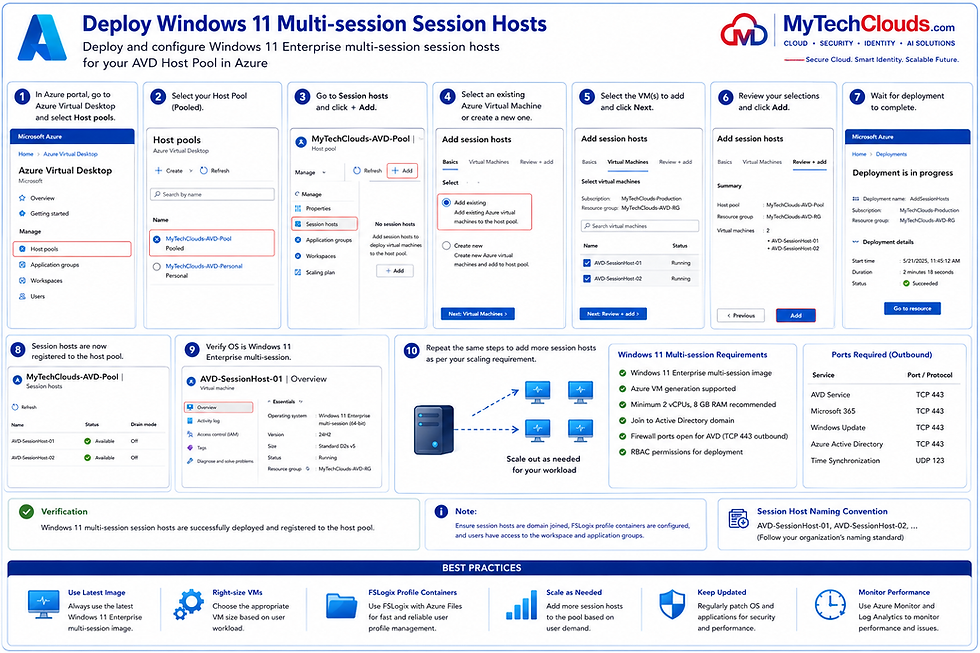
AVD Deployment – Windows 11 Enterprise Multi-Session Hosts
Windows 11 Enterprise Multi-Session Session Hosts were deployed within the MyTechClouds-AVD-Pool Host Pool to provide a scalable and cost-effective virtual desktop platform for end users. Unlike traditional virtual desktops, the multi-session operating system allows multiple users to securely connect to the same Session Host while maintaining an isolated user experience.
The Session Hosts were deployed using the approved Windows 11 Enterprise Multi-Session image, joined to the MyTechClouds.com domain, and registered with the Azure Virtual Desktop service. Once deployment was completed, the Session Hosts became available within the Host Pool and were ready to accept user connections.
To ensure a consistent user experience, the Session Hosts were integrated with FSLogix Profile Containers, allowing user profiles, settings, and application data to persist across sessions. Additional Session Hosts can be added to the Host Pool as user demand increases, providing seamless scalability for the AVD environment.
Key Benefits
Multi-user virtual desktop sessions
Optimized infrastructure utilization
Integration with FSLogix Profile Containers
Centralized management and monitoring
Easy scaling based on user demand
Secure access through Azure Virtual Desktop
AVD Deployment – Create a Windows 11 Multi-Session Golden Image
To ensure consistency and simplify future deployments, a standardized Windows 11 Enterprise Multi-Session Golden Image was created for Azure Virtual Desktop Session Hosts. The image serves as a master template containing the operating system, latest updates, security configurations, Azure Virtual Desktop agents, monitoring tools, and required business applications.
The process involved deploying a dedicated Windows 11 Enterprise Multi-Session virtual machine, applying all required configurations, optimizing the operating system for AVD workloads, and joining it to the MyTechClouds.com domain. Once validation was completed, the virtual machine was generalized using Sysprep and captured as a reusable Azure Image.
The Golden Image can then be used to rapidly deploy new Session Hosts within Host Pools, ensuring every virtual machine is built using the same approved configuration and security baseline.

Benefits
Standardized Session Host deployments
Faster provisioning of new AVD hosts
Consistent security and configuration settings
Simplified patching and image management
Reduced deployment time and operational effort
Easier scaling of Azure Virtual Desktop environments
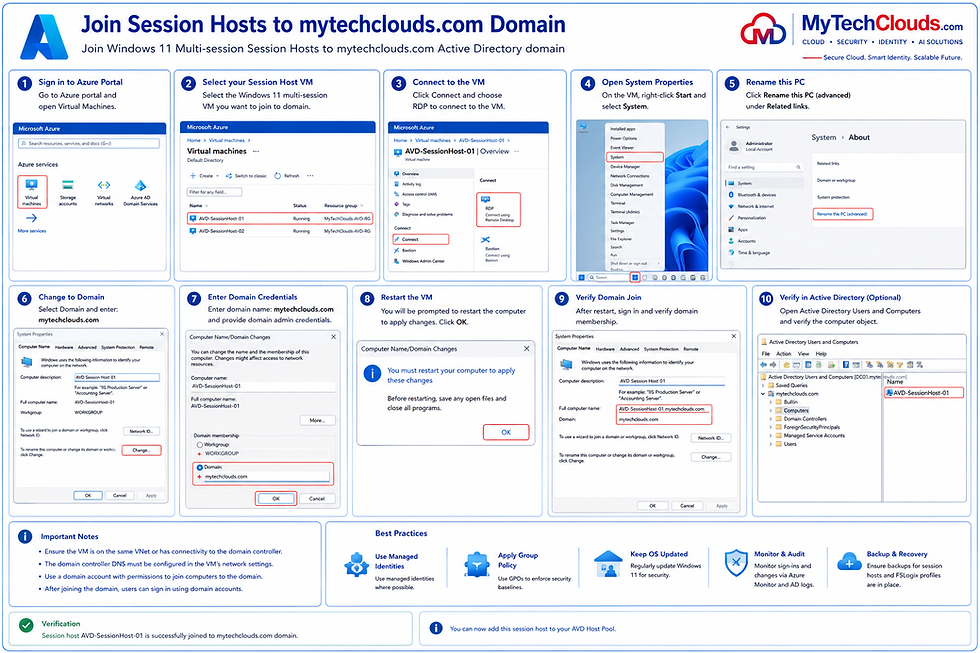
AVD Deployment – Join Session Hosts to the MyTechClouds.com Domain
After deploying the Windows 11 Enterprise Multi-Session virtual machines, the next step is to join the Session Hosts to the MyTechClouds.com Active Directory domain. Domain joining enables centralized authentication, Group Policy management, DNS integration, and secure access to corporate resources required by Azure Virtual Desktop.
The Session Host virtual machine is connected through Remote Desktop, renamed according to organizational naming standards, and joined to the mytechclouds.com domain using authorized domain administrator credentials. Once the domain join process is completed, the virtual machine is restarted to apply the changes and establish domain membership.
After the restart, domain membership is verified through System Properties and Active Directory Users and Computers (ADUC), ensuring that the Session Host computer object is successfully registered within Active Directory.
Benefits of Domain Joining
Centralized user authentication
Active Directory integration
Group Policy management
Access to corporate resources and file shares
DNS-based name resolution
Enhanced security and compliance
Validation
The Session Host was successfully joined to the MyTechClouds.com domain and verified within Active Directory, making it ready for Azure Virtual Desktop registration, FSLogix profile management, and user access.
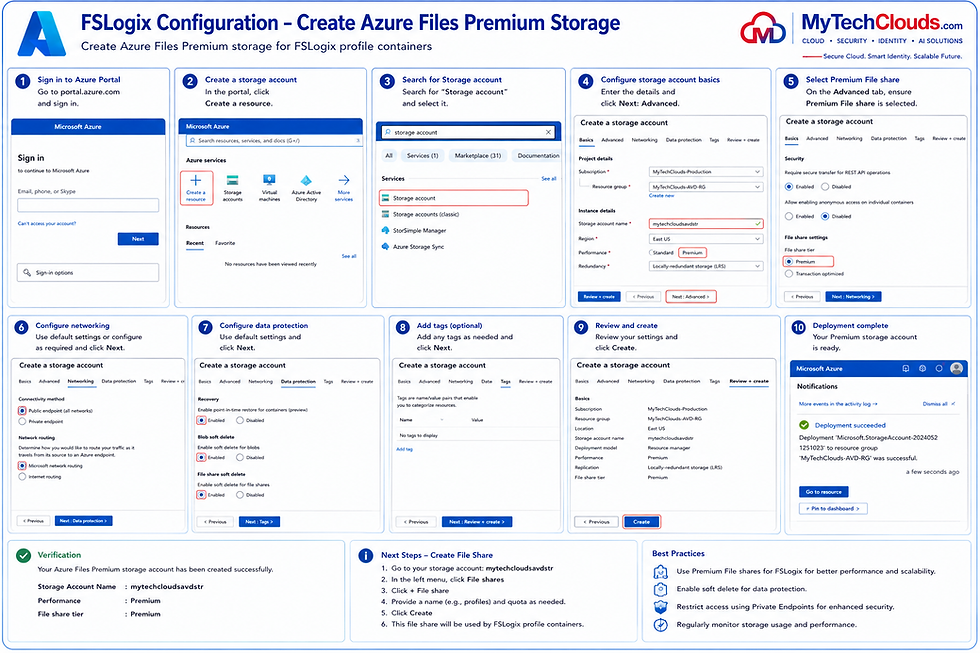
FSLogix Configuration – Create Azure Files Premium Storage
To provide centralized and high-performance profile storage for Azure Virtual Desktop users, an Azure Files Premium Storage Account was deployed and configured for FSLogix Profile Containers. FSLogix stores user profiles in VHDX files on a centralized file share, allowing users to maintain a consistent desktop experience regardless of which Session Host they connect to.
A dedicated Premium Storage Account (mytechcloudsavdstr) was created within the AVD Resource Group using Premium File Shares to deliver low-latency performance and support concurrent user access. The storage account was configured with appropriate networking, security, and data protection settings to ensure reliable profile storage and business continuity.
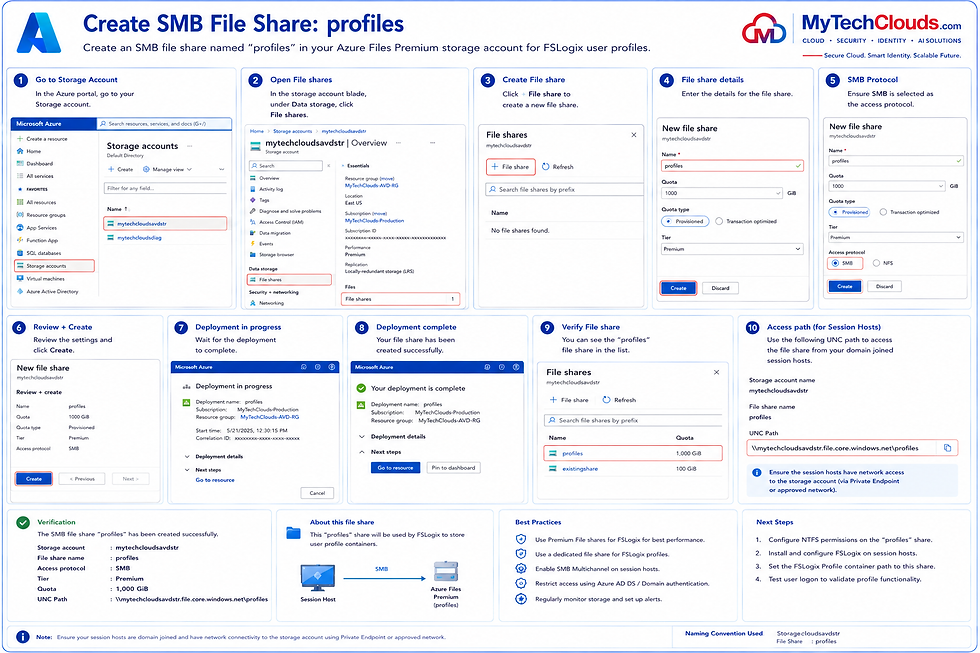
Once the storage account was deployed, a dedicated file share was created to host the FSLogix Profile Containers used by Azure Virtual Desktop Session Hosts.
Key Benefits
Centralized user profile management
Faster logon and logoff performance
Consistent user experience across Session Hosts
High-performance Premium Azure Files storage
Simplified profile management and maintenance
Scalable storage platform for growing user workloads
Best Practices
Use Premium File Shares for production AVD environments.
Enable data protection and soft delete features.
Restrict access using private networking where possible.
Monitor storage performance and capacity utilization.
Implement appropriate backup and recovery procedures.
Validation
The Premium Azure Files Storage Account was successfully deployed and configured, providing a secure and scalable storage platform for FSLogix Profile Containers within the Azure Virtual Desktop environment.
FSLogix Configuration – Create Azure Files Premium Storage
To provide centralized and high-performance profile storage for Azure Virtual Desktop users, an Azure Files Premium Storage Account was deployed and configured for FSLogix Profile Containers. FSLogix stores user profiles in VHDX files on a centralized file share, allowing users to maintain a consistent desktop experience regardless of which Session Host they connect to a dedicated Premium Storage Account (mytechcloudsavdstr) was created within the AVD Resource Group using Premium File Shares to deliver low-latency performance and support concurrent user access. The storage account was configured with appropriate networking, security, and data protection settings to ensure reliable profile storage and business continuity.
Once the storage account was deployed, a dedicated file share was created to host the FSLogix Profile Containers used by Azure Virtual Desktop Session Hosts.

Key Benefits
Centralized user profile management
Faster logon and logoff performance
Consistent user experience across Session Hosts
High-performance Premium Azure Files storage
Simplified profile management and maintenance
Scalable storage platform for growing user workloads
Best Practices
Use Premium File Shares for production AVD environments.
Enable data protection and soft delete features.
Restrict access using private networking where possible.
Monitor storage performance and capacity utilization.
Implement appropriate backup and recovery procedures.
Validation
The Premium Azure Files Storage Account was successfully deployed and configured, providing a secure and scalable storage platform for FSLogix Profile Containers within the Azure Virtual Desktop environment.
Configure Private Endpoint for Azure Files (FSLogix Storage)
To secure FSLogix profile storage and eliminate public access to Azure Files, a Private Endpoint should be deployed for the Azure Files Premium Storage Account (mytechcloudsavdstr). The Private Endpoint assigns a private IP address from the Azure Virtual Network, allowing Session Hosts to access the file share securely over the Microsoft backbone network rather than the public internet.
The Private Endpoint is deployed within the AVD virtual network (MyTechClouds-AVD-VNET – 10.2.0.0/16) and linked to the Azure Files service. Private DNS integration ensures that the storage account name automatically resolves to the private IP address, allowing seamless connectivity from domain-joined Session Hosts.
Configuration Overview
Storage Account: mytechcloudsavdstr
Service Type: Azure Files (SMB)
File Share: profiles
Access Method: Private Endpoint
Protocol: SMB (TCP 445)
Network: MyTechClouds-AVD-VNET (10.2.0.0/16)
Private DNS Zone: privatelink.file.core.windows.net
Public Network Access: Disabled (Recommended)
Connectivity Flow
AVD Session Host requests access to the FSLogix profile share.
DNS resolves the storage account name to the Private Endpoint IP address.
Traffic remains within the Azure private network.
SMB traffic (TCP 445) connects directly to Azure Files.
FSLogix loads or updates the user’s profile container (VHDX).
No profile traffic traverses the public internet.
Security Benefits
Eliminates public exposure of Azure Files.
Prevents direct internet access to profile storage.
Ensures all profile traffic remains on private Azure networking.
Supports Zero Trust and enterprise security requirements.
Enhances protection against unauthorized access and data exfiltration.
Validation
After deployment, AVD Session Hosts should resolve the storage account FQDN to a private IP address and successfully access the profiles SMB share over TCP 445. FSLogix Profile Containers should mount successfully during user logon, confirming secure private connectivity
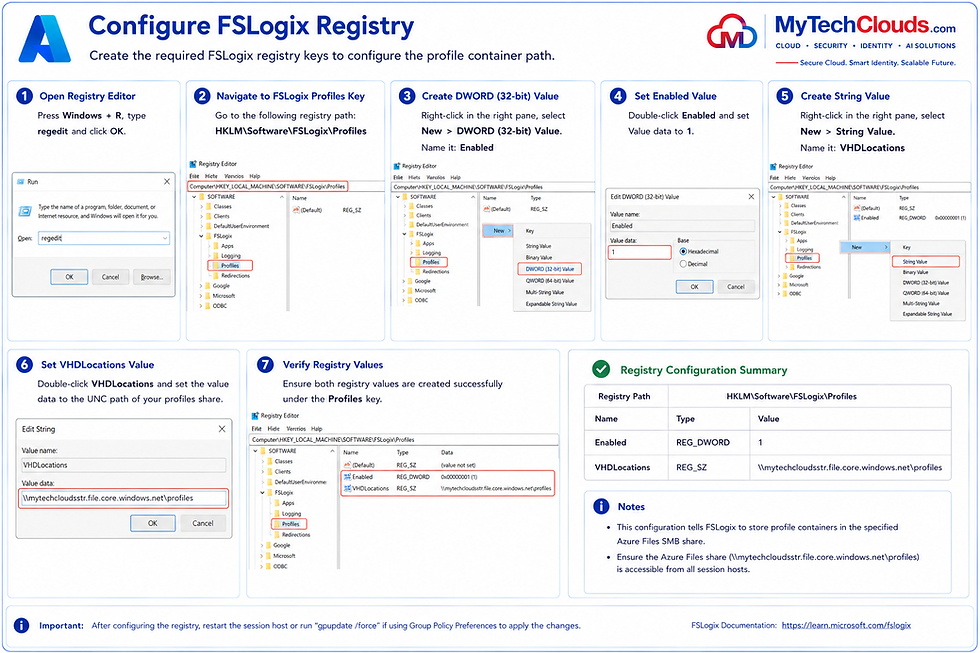
Configure FSLogix Registry: HKLM\Software\FSLogix\Profiles Enabled=1 VHDLocations=\\mytechcloudsstr.file.core.windows.net\profiles
Monitoring & Logging
Log Analytics Workspace
A Log Analytics Workspace is deployed to provide centralized monitoring, logging, performance analysis, and operational visibility across the Azure Virtual Desktop (AVD) environment. It serves as the primary data repository for Azure Monitor, collecting logs, metrics, diagnostic data, and security events from Azure resources, Session Hosts, Azure Firewall, VPN Gateway, Storage Accounts, and other platform services.
The workspace mytechclouds-law is deployed in the East US region within the MyTechClouds-AVD-RG resource group and acts as the central monitoring platform for the AVD infrastructure.

Configuration Details
Workspace Name: mytechclouds-law
Resource Group: MyTechClouds-AVD-RG
Region: East US
Platform: Azure Monitor / Log Analytics
Purpose: Centralized monitoring and log collection
Key Capabilities
Centralized collection of Azure resource logs and metrics.
Monitor Azure Virtual Desktop Session Hosts and user sessions.
Collect Azure Firewall traffic and security logs.
Analyze VPN Gateway connectivity and tunnel health.
Monitor Storage Account and FSLogix performance.
Create alerts, dashboards, workbooks, and reports.
Support troubleshooting, auditing, compliance, and security investigations.
Integrated Services
The Log Analytics Workspace can receive data from:
Azure Virtual Desktop Session Hosts
Azure Firewall
Azure VPN Gateway
Azure Storage Accounts
Azure Monitor Agent (AMA)
Azure Activity Logs
Azure Security Services
Windows Event Logs and Performance Counters
Benefits
Centralized operational visibility.
Faster troubleshooting and root-cause analysis.
Real-time monitoring and alerting.
Historical log retention and reporting.
Enhanced security monitoring and compliance auditing.
Integration with Azure Monitor, Microsoft Sentinel, and Workbooks.
Validation
After deployment, the workspace successfully receives telemetry from connected Azure resources and provides a centralized platform for monitoring the health, performance, security, and availability of the entire MyTechClouds Azure Virtual Desktop environment.
Install Azure Monitor Agent (AMA)
The Azure Monitor Agent (AMA) is installed on Azure Virtual Machines to collect operating system logs, performance metrics, security events, and telemetry data, and send them to Azure Monitor and the Log Analytics Workspace for centralized monitoring and analysis.
In the MyTechClouds Azure Virtual Desktop environment, the Azure Monitor Agent is deployed on Session Host VMs and other Azure workloads to provide real-time visibility into system health, performance, user activity, and infrastructure operations.

Configuration Details
Agent: Azure Monitor Agent (AMA)
Deployment Method: Azure VM Extension
Target Systems: Azure Virtual Machines and AVD Session Hosts
Monitoring Platform: Azure Monitor
Log Repository: Log Analytics Workspace (mytechclouds-law)
Region: East US
Key Functions
Collect Windows Event Logs.
Capture CPU, Memory, Disk, and Network metrics.
Monitor Session Host performance and availability.
Collect security and operational events.
Forward telemetry data to Azure Monitor.
Enable alerting, dashboards, and performance analysis.
Data Flow
Azure Monitor Agent is installed on the Virtual Machine.
The VM generates logs, metrics, and performance data.
The agent securely sends telemetry to Azure Monitor.
Azure Monitor stores and analyzes data in the Log Analytics Workspace.
Administrators can create alerts, dashboards, workbooks, and reports based on collected data.
Benefits
Centralized monitoring of Azure workloads.
Real-time performance visibility.
Faster troubleshooting and root cause analysis.
Proactive alerting and operational monitoring.
Enhanced security and compliance reporting.
Integration with Azure Monitor, Workbooks, and Microsoft Sentinel.
Validation
After installation, the Azure Monitor Agent service is running on the Virtual Machine, the VM appears as Connected within the Log Analytics Workspace, and logs and performance metrics are successfully flowing into Azure Monitor for monitoring and reporting.
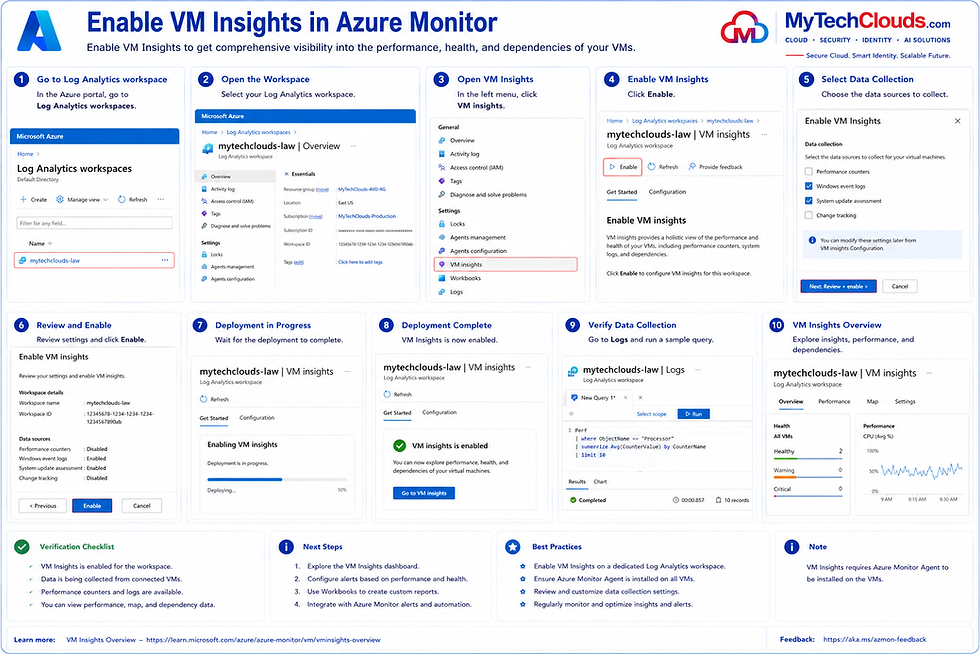
Enable VM Insights
VM Insights is enabled through Azure Monitor and the Log Analytics Workspace (mytechclouds-law) to provide comprehensive visibility into the health, performance, dependencies, and operational status of Azure Virtual Machines and Azure Virtual Desktop Session Hosts.
VM Insights leverages the Azure Monitor Agent (AMA) and Data Collection Rules (DCRs) to collect performance counters, event logs, process information, and system metrics, enabling proactive monitoring and troubleshooting across the AVD environment.
Configuration Details
Monitoring Platform: Azure Monitor
Workspace: mytechclouds-law
Data Collection: Performance Counters, Event Logs, VM Metrics
Agent Requirement: Azure Monitor Agent (AMA)
Target Resources: AVD Session Hosts and Azure Virtual Machines
Key Features
Real-time CPU, Memory, Disk, and Network monitoring.
VM health and availability monitoring.
Performance trend analysis and capacity planning.
Process and dependency mapping.
Centralized monitoring through Azure Monitor.
Integration with Log Analytics Workbooks and Alerts.
Data Collection Process
Azure Monitor Agent collects telemetry from the VM.
Performance counters and event logs are sent to Log Analytics.
VM Insights processes and visualizes the collected data.
Administrators can monitor resource utilization, identify bottlenecks, and investigate performance issues from a centralized dashboard.
Benefits
End-to-end visibility of Azure Virtual Machines.
Proactive performance monitoring and alerting.
Faster troubleshooting and root cause analysis.
Capacity planning and workload optimization.
Centralized operational monitoring for Azure Virtual Desktop environments.
Validation
After VM Insights is enabled, performance metrics, event logs, and health information are successfully collected and displayed within Azure Monitor. Administrators can view real-time VM performance, resource utilization trends, and operational health from the VM Insights dashboard.
Configure Diagnostic Settings for: Azure Firewall

Configure Diagnostic Settings for Azure Firewall
Azure Firewall Diagnostic Settings are configured to send firewall logs, security events, and performance metrics to the Log Analytics Workspace (mytechclouds-law) for centralized monitoring, reporting, and security analysis. This enables administrators to monitor firewall activity, investigate network traffic, analyze threats, and troubleshoot connectivity issues from a single platform.
The diagnostic configuration ensures that all Azure Firewall events are retained and available for operational monitoring, auditing, and compliance requirements.

Configuration Details
Azure Firewall: mytechclouds-fw
Diagnostic Setting Name: AzureFirewall-Diagnostics
Log Analytics Workspace: mytechclouds-law
Destination: Azure Monitor / Log Analytics
Metrics: AllMetrics Enabled
Log Categories Collected
The following Azure Firewall logs are forwarded to Log Analytics:
AzureFirewallApplicationRule
AzureFirewallNetworkRule
AzureFirewallDnsProxy
AzureFirewallThreatIntel
AzureFirewallIDS
AzureFirewallNATRule
Monitoring Capabilities
Firewall traffic monitoring and analysis.
Application and Network Rule validation.
DNS Proxy query logging and troubleshooting.
Threat Intelligence event monitoring.
Intrusion Detection System (IDS) visibility.
NAT rule activity tracking.
Security investigation and audit reporting.
Data Flow
Traffic passes through Azure Firewall.
Firewall generates logs and metrics.
Diagnostic Settings forward telemetry to Log Analytics Workspace.
Azure Monitor stores and indexes the data.
Administrators can use KQL queries, Workbooks, Dashboards, and Alerts for monitoring and analysis.
Benefits
Centralized firewall visibility.
Improved security monitoring and threat detection.
Faster troubleshooting of connectivity issues.
Historical traffic analysis and auditing.
Integration with Azure Monitor and Microsoft Sentinel.
Real-time alerting and operational reporting.
Validation
After the diagnostic settings are configured, Azure Firewall logs successfully appear within the mytechclouds-law Log Analytics Workspace. Administrators can query firewall traffic, monitor DNS activity, review security events, and create alerts based on firewall-generated telemetry.
Configure Diagnostic Settings for AVD Session Hosts
Diagnostic Settings are configured on Azure Virtual Desktop (AVD) Session Hosts to forward operating system logs, performance metrics, and diagnostic events to the Log Analytics Workspace (mytechclouds-law). This provides centralized monitoring, troubleshooting, performance analysis, and operational visibility across all AVD Session Hosts.
By enabling Diagnostic Settings, administrators can monitor user sessions, system health, resource utilization, security events, and Windows operating system logs from a single monitoring platform.

Configuration Details
Target Resource: AVD Session Hosts
Diagnostic Setting Name: AVD-SessionHost-Diagnostics
Log Analytics Workspace: mytechclouds-law
Metrics Collection: AllMetrics Enabled
Monitoring Platform: Azure Monitor
Log Categories Collected
The following diagnostic logs are forwarded to Log Analytics:
Administrative Logs
Security Logs
System Logs
Windows Event Logs
Performance Metrics
DSC (Desired State Configuration) Logs
Syslog (Linux, if applicable)
Monitoring Capabilities
Session Host health monitoring.
Windows Event Log collection.
CPU, Memory, Disk, and Network performance monitoring.
Security and audit event tracking.
User session troubleshooting.
Performance trend analysis and capacity planning.
Alerting and operational reporting.
Data Flow
AVD Session Hosts generate logs and performance data.
Diagnostic Settings collect the selected logs and metrics.
Data is forwarded to the Log Analytics Workspace.
Azure Monitor processes and stores the telemetry.
Administrators use KQL queries, Workbooks, Dashboards, and Alerts for monitoring and analysis.
Benefits
Centralized monitoring of all Session Hosts.
Improved visibility into user experience and system performance.
Faster troubleshooting and root cause analysis.
Historical reporting and auditing.
Integration with Azure Monitor, VM Insights, and Microsoft Sentinel.
Proactive alerting for performance and operational issues.
Validation
After configuration, diagnostic logs and metrics from the Session Hosts are successfully ingested into the mytechclouds-law Log Analytics Workspace. Administrators can query Session Host events, monitor performance trends, analyze user activity, and create alerts for operational monitoring.
Configure Diagnostic Settings for Azure Storage Account
Diagnostic Settings are configured on the Azure Storage Account (mytechcloudsvdstr) to send storage logs and performance metrics to the Log Analytics Workspace (mytechclouds-law). This enables centralized monitoring, auditing, troubleshooting, and performance analysis of Azure Files, FSLogix profile containers, and storage services used by the Azure Virtual Desktop environment.
The configuration provides visibility into storage access patterns, user activity, file operations, capacity utilization, and storage performance metrics from a single monitoring platform.

Configuration Details
Storage Account: mytechcloudsvdstr
Diagnostic Setting Name: mytechcloudsvdstr-Diagnostics
Log Analytics Workspace: mytechclouds-law
Metrics Collection: AllMetrics Enabled
Monitoring Platform: Azure Monitor
Log Categories Collected
The following storage logs are forwarded to Log Analytics:
StorageRead
StorageWrite
StorageDelete
StorageList
StorageCredentials
StorageCapacity
Monitoring Capabilities
Azure Files access monitoring.
FSLogix profile container activity tracking.
Storage performance and utilization monitoring.
Read, Write, and Delete operation auditing.
Capacity and growth analysis.
Security and access monitoring.
Storage troubleshooting and diagnostics.
Data Flow
Azure Storage Account generates operational logs and metrics.
Diagnostic Settings collect selected storage telemetry.
Data is forwarded to the Log Analytics Workspace.
Azure Monitor stores and analyzes the collected information.
Administrators can use KQL queries, Workbooks, Dashboards, and Alerts for monitoring and reporting.
Benefits
Centralized monitoring of Azure Storage services.
Visibility into FSLogix profile storage activity.
Improved troubleshooting and performance analysis.
Storage capacity planning and utilization tracking.
Security auditing and access monitoring.
Integration with Azure Monitor and Microsoft Sentinel.
Validation
After configuration, storage account logs and metrics are successfully ingested into the mytechclouds-law Log Analytics Workspace. Administrators can monitor storage operations, analyze FSLogix profile activity, track capacity consumption, and create alerts for performance or operational issues.
Security Configuration
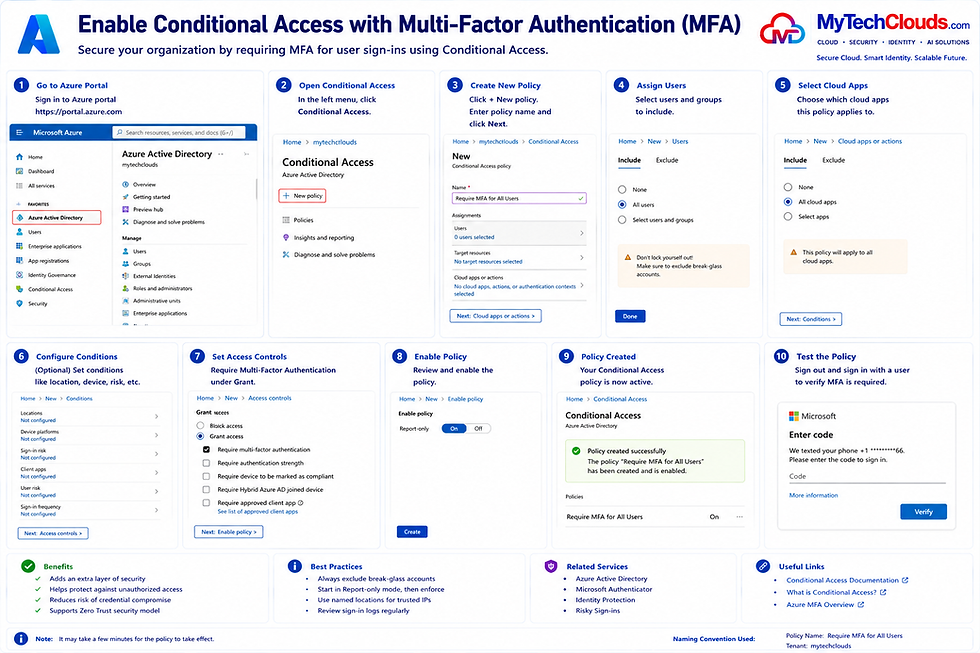
Enable Conditional Access with Multi-Factor Authentication (MFA)
Conditional Access is implemented in Microsoft Entra ID (Azure AD) to strengthen identity security by enforcing Multi-Factor Authentication (MFA) during user sign-ins. This security control ensures that users must provide an additional verification factor beyond their username and password before gaining access to corporate resources.
The policy applies to cloud applications, Azure Virtual Desktop, Microsoft 365 services, Azure Portal access, and other integrated enterprise applications, significantly reducing the risk of unauthorized access and credential compromise.
Enable Conditional Access with Multi-Factor Authentication (MFA)
.
Configuration Details
Platform: Microsoft Entra ID (Azure AD)
Security Feature: Conditional Access
Policy Name: Require MFA for All Users
Target Users: All Users (excluding designated break-glass accounts)
Cloud Applications: All Cloud Apps
Grant Control: Require Multi-Factor Authentication
Policy Workflow
User attempts to sign in to a protected application.
Microsoft Entra ID evaluates Conditional Access policies.
The policy determines whether MFA is required.
The user completes an additional verification step using Microsoft Authenticator, SMS, phone call, or other approved methods.
Access is granted only after successful MFA validation.
Security Benefits
Protects against password-based attacks.
Reduces the risk of compromised credentials.
Secures Azure Virtual Desktop and Microsoft 365 access.
Supports Zero Trust security principles.
Provides stronger identity verification for remote users.
Enhances compliance and security posture.
Best Practices
Exclude emergency break-glass accounts from MFA policies.
Deploy policies in Report-Only Mode before enforcement.
Use Microsoft Authenticator as the preferred MFA method.
Monitor sign-in logs and Conditional Access reports regularly.
Combine MFA with device compliance and risk-based policies.
Validation
After the Conditional Access policy is enabled, users are prompted for Multi-Factor Authentication during sign-in. Successful authentication requires both primary credentials and a second verification factor, ensuring secure access to organizational resources.
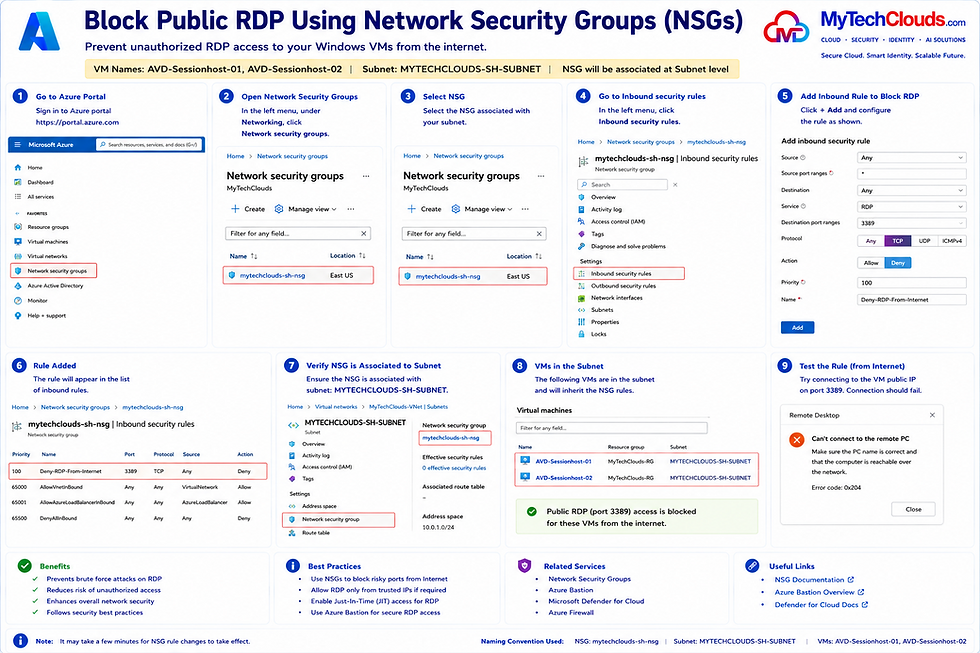
Block Public RDP Access Using Network Security Groups (NSGs)
To enhance the security of Azure Virtual Machines, Network Security Groups (NSGs) are configured to block inbound Remote Desktop Protocol (RDP) traffic (TCP Port 3389) from the public internet. This prevents unauthorized users from directly accessing Session Host virtual machines and significantly reduces the attack surface exposed to external threats.
In this implementation, the NSG mytechclouds-sh-nsg is associated with the MYTECHCLOUDS-SH-SUBNET, which contains the AVD Session Host virtual machines AVD-SessionHost-01 and AVD-SessionHost-02. An inbound security rule named Deny-RDP-From-Internet is configured with a higher priority to explicitly deny all inbound TCP 3389 traffic originating from any external source.
By blocking public RDP access, administrative access to Azure Virtual Desktop Session Hosts is restricted to approved management methods such as Azure Bastion, VPN connectivity, or private network access. This approach aligns with Microsoft security best practices and Zero Trust principles by eliminating direct internet exposure of management ports.
Validation
After applying the NSG rule, inbound RDP connections from the public internet are successfully denied, and attempts to connect directly to TCP Port 3389 fail as expected. The Session Hosts remain accessible only through approved secure management channels.
Enable Microsoft Defender for Cloud
Microsoft Defender for Cloud is enabled to provide centralized security posture management, threat protection, vulnerability assessment, and continuous security monitoring across the Azure Virtual Desktop environment. It helps identify security risks, generate recommendations, detect threats, and improve compliance by continuously assessing Azure resources against Microsoft security best practices.
In this implementation, Defender for Cloud is enabled for the AVD Subscription, protecting critical resources including AVD-SessionHost-01, AVD-SessionHost-02, virtual networks, storage resources, and supporting Azure services.

Configuration Details
Security Platform: Microsoft Defender for Cloud
Subscription Protected: AVD Subscription
Protected Resources: AVD Session Hosts, Virtual Networks, Storage Accounts, and Azure Services
Plan: Defender for Cloud Standard
Security Posture Management: Enabled
Continuous Monitoring: Enabled
Security Features Enabled
Security posture assessment and Secure Score monitoring.
Threat detection and security alerts.
Vulnerability assessment and recommendations.
Just-In-Time (JIT) VM Access.
Security compliance and governance reporting.
Attack surface reduction and hardening recommendations.
Integration with Azure Monitor and Microsoft Sentinel.
Just-In-Time (JIT) VM Access
To further secure administrative access, Just-In-Time (JIT) access is enabled for Session Hosts. Instead of permanently opening management ports such as RDP (TCP 3389), access is granted only when explicitly requested and approved for a limited period, significantly reducing exposure to external attacks.
Security Monitoring
Defender continuously evaluates the environment and provides:
Secure Score improvement recommendations.
Security alerts and incident visibility.
Misconfiguration detection.
Threat analytics and risk assessment.
Resource inventory and security compliance reporting.
Benefits
Continuous security monitoring and threat protection.
Reduced attack surface across Azure workloads.
Improved compliance and governance posture.
Proactive identification of vulnerabilities and risks.
Enhanced protection for Azure Virtual Desktop infrastructure.
Centralized security visibility and operational control.
Validation
After enabling Microsoft Defender for Cloud, protected resources are continuously assessed, security recommendations are generated, Secure Score is calculated, and security alerts are monitored through the Defender for Cloud dashboard.
Enable Azure DDoS Protection Standard
Azure DDoS Protection Standard is enabled to protect the Azure Virtual Desktop environment and associated network resources from Distributed Denial-of-Service (DDoS) attacks. The service provides automatic detection, mitigation, monitoring, and protection against large-scale network attacks targeting public-facing Azure services.
In this implementation, a dedicated DDoS Protection Plan (mytechclouds-ddos-plan) is deployed and associated with the MYTECHCLOUDS-SH-VNET, ensuring that all resources connected to the virtual network benefit from enterprise-grade DDoS protection

Configuration Details
Service: Azure DDoS Protection Standard
DDoS Protection Plan: mytechclouds-ddos-plan
Subscription: AVD Subscription
Resource Group: MyTechClouds-RG
Region: East US
Protected Virtual Network: MYTECHCLOUDS-SH-VNET
Protection Tier: Standard
Security Capabilities
Automatic detection and mitigation of DDoS attacks.
Protection against volumetric, protocol, and resource-exhaustion attacks.
Real-time attack monitoring and analytics.
Enhanced network resilience and availability.
Integration with Azure Monitor and security reporting.
Protection for all supported resources within the associated Virtual Network.
Benefits
Protects Azure workloads from large-scale network attacks.
Maintains service availability during attack events.
Provides detailed attack telemetry and reporting.
Reduces downtime and business disruption risks.
Enhances overall network security posture.
Works alongside Azure Firewall and NSGs for layered security.
Protected Resources
The DDoS Protection Plan protects resources deployed within the associated MYTECHCLOUDS-SH-VNET, including:
Azure Virtual Desktop Session Hosts
Virtual Network Resources
Public-facing Azure Services
Network Infrastructure Components
Validation
After deployment, the DDoS Protection Plan is successfully associated with the virtual network, and Azure confirms that MYTECHCLOUDS-SH-VNET is protected under the Standard protection tier. Network traffic is continuously monitored, and Azure automatically applies mitigation measures if a DDoS attack is detected.
Configure Least Privilege RBAC
Azure Role-Based Access Control (RBAC) is configured following the Principle of Least Privilege, ensuring that users, administrators, and services receive only the permissions required to perform their specific tasks. This approach minimizes security risks, reduces the attack surface, and improves governance across the Azure Virtual Desktop environment.
In this implementation, RBAC assignments are configured at the Resource Group scope (MyTechClouds-RG), allowing centralized management of Azure Virtual Desktop resources while preventing unnecessary access to other Azure services and subscriptions.

Configuration Details
Subscription: AVD Subscription
Resource Group: MyTechClouds-RG
Virtual Network: MYTECHCLOUDS-SH-VNET
Subnet: MYTECHCLOUDS-SH-SUBNET
Assigned Group: avd-users
Access Model: Least Privilege
RBAC Role Assignment
The Virtual Machine User Login role is assigned to the avd-users group, allowing users to sign in to Azure Virtual Desktop session hosts using Azure AD authentication without granting administrative permissions on the virtual machines.
Access Requirement | Recommended Role |
User login to Session Hosts | Virtual Machine User Login |
Session Host Administration | Virtual Machine Contributor |
Read-Only Access | Reader |
Network Management | Network Contributor |
Storage Management | Storage Blob Data Contributor |
Security Benefits
Restricts users to only required permissions.
Prevents unauthorized administrative access.
Reduces risk from compromised accounts.
Supports Zero Trust security principles.
Simplifies compliance and auditing requirements.
Provides better operational governance.
Scope Guidance
Management Group: Enterprise-wide governance.
Subscription: Broad administrative access when required.
Resource Group: Recommended scope for AVD administration.
Resource Level: Used only for specific exceptions.
Validation
The RBAC assignment is verified within Azure IAM, confirming that the avd-users group has been assigned the Virtual Machine User Login role at the MyTechClouds-RG scope. Users can successfully access AVD session hosts while administrative privileges remain restricted.
Validation & Testing – DNS Resolution Validation
This validation confirms that Azure Virtual Desktop (AVD) session hosts can successfully resolve external Microsoft service URLs using the enterprise DNS architecture configured through Azure Firewall and Domain Controllers.
The test was performed from both AVD-SESSIONHOST-01 (10.1.1.4) and AVD-SESSIONHOST-02 (10.1.1.5) using the command:
nslookup login.microsoftonline.com
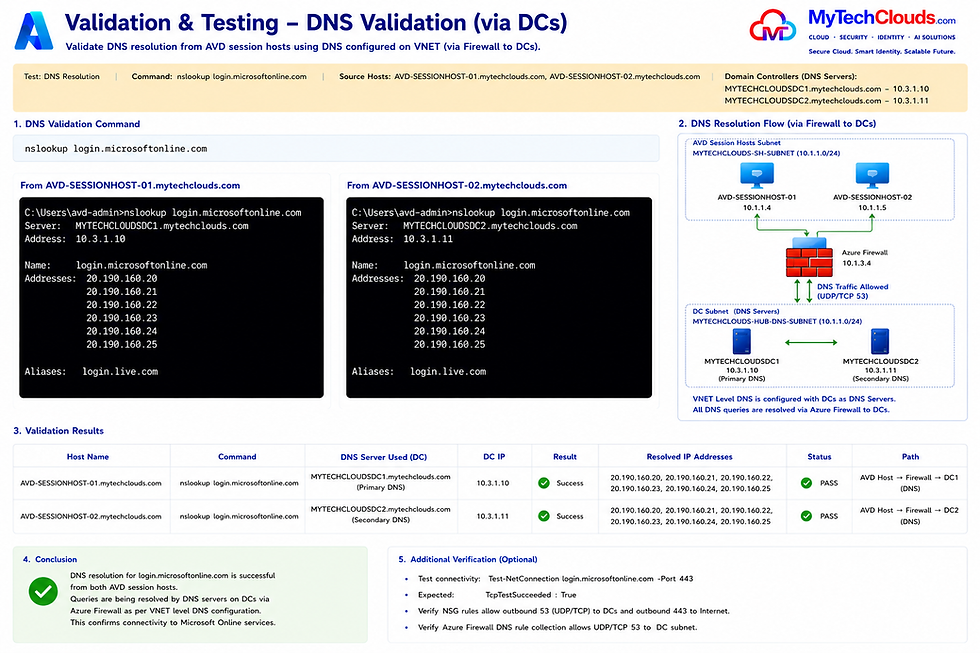
DNS Resolution Flow
The AVD session hosts are configured to use VNet-level DNS settings that point to Azure Firewall DNS Proxy. When a DNS query is initiated, the request follows the path:
AVD Session Host → Azure Firewall DNS Proxy (10.1.3.4) → Domain Controllers/DNS Servers → DNS Response → Session Host
The DNS servers handling the requests are:
MYTECHCLOUDSDC1.mytechclouds.com – 10.3.1.10 (Primary DNS)
MYTECHCLOUDSDC2.mytechclouds.com – 10.3.1.11 (Secondary DNS)
Azure Firewall securely forwards DNS traffic (UDP/TCP Port 53) to the Domain Controllers, providing centralized DNS control, logging, and security inspection.
Validation Results
The DNS lookup successfully resolved login.microsoftonline.com from both session hosts and returned valid Microsoft public IP addresses.
Session Host | DNS Server Used | Result |
AVD-SESSIONHOST-01 | MYTECHCLOUDSDC1 (10.3.1.10) | PASS |
AVD-SESSIONHOST-02 | MYTECHCLOUDSDC2 (10.3.1.11) | PASS |
Verification Outcome
DNS resolution completed successfully from both AVD session hosts.
Azure Firewall DNS Proxy forwarded queries correctly to the Domain Controllers.
Primary and secondary DNS servers responded as expected.
Microsoft Entra ID and Microsoft 365 endpoints are resolvable from the AVD environment.
DNS traffic is centralized, logged, and controlled through Azure Firewall.
Conclusion
The DNS validation confirms that the Azure Virtual Desktop environment is correctly integrated with the centralized DNS architecture. Session hosts successfully resolve Microsoft cloud services through Azure Firewall DNS Proxy, which forwards DNS requests to the Domain Controllers (10.3.1.10 and 10.3.1.11). This validates end-to-end connectivity, DNS functionality, and readiness for AVD user authentication and Microsoft cloud service access.
Validation & Testing – SMB Connectivity to Azure File Share
This validation confirms that Azure Virtual Desktop (AVD) session hosts can successfully access the Azure Files Premium storage account used for FSLogix profile containers over the SMB protocol (TCP Port 445).
The test was executed from both AVD-SESSIONHOST-01 and AVD-SESSIONHOST-02 using the following PowerShell command:
Test-NetConnection mytechcloudsdvstr.file.core.windows.net -Port 445

SMB Connectivity Flow
The SMB connection follows a secured network path through Azure Firewall before reaching the Azure Files storage account:
AVD Session Host → Azure Firewall (10.1.3.4) → Azure Files Storage Account (10.2.50.10) → File Share (mytechcloudsstr)
Azure Firewall allows SMB traffic on TCP Port 445, ensuring that access to the Azure File Share is controlled, inspected, and logged according to enterprise security policies.
Validation Results
The connectivity test returned TcpTestSucceeded = True from both session hosts, confirming successful communication with the Azure File Share service.
Session Host | Storage Endpoint | Storage IP | Port | Result |
AVD-SESSIONHOST-01 | 10.2.50.10 | 445 | PASS | |
AVD-SESSIONHOST-02 | 10.2.50.10 | 445 | PASS |
Storage Configuration
Storage Account: mytechcloudsdvstr
File Share: mytechcloudsstr
Storage Private IP: 10.2.50.10
Protocol: SMB 3.0
Port: TCP 445
Azure Firewall IP: 10.1.3.4
Verification Outcome
SMB connectivity is successful from all AVD session hosts.
Azure Firewall correctly permits TCP Port 445 traffic.
Azure Files Premium storage is reachable through the approved network path.
FSLogix profile containers can be stored and accessed securely.
Storage access remains protected through centralized Azure Firewall controls.
Conclusion
The SMB validation confirms that Azure Virtual Desktop session hosts can successfully communicate with the Azure Files Premium storage account hosting FSLogix profile containers. Connectivity over TCP Port 445 is operational through Azure Firewall (10.1.3.4), validating secure storage access required for user profile management and persistent AVD user sessions.
Validation & Testing – Azure Virtual Desktop (AVD) Final Validation
The final validation confirms that all Azure Virtual Desktop (AVD) components are operating successfully and that the complete end-to-end solution is ready for production use. Testing was performed from both session hosts (AVD-SESSIONHOST-01 and AVD-SESSIONHOST-02) to verify DNS resolution, SMB connectivity, user authentication, FSLogix profile management, and network security controls.
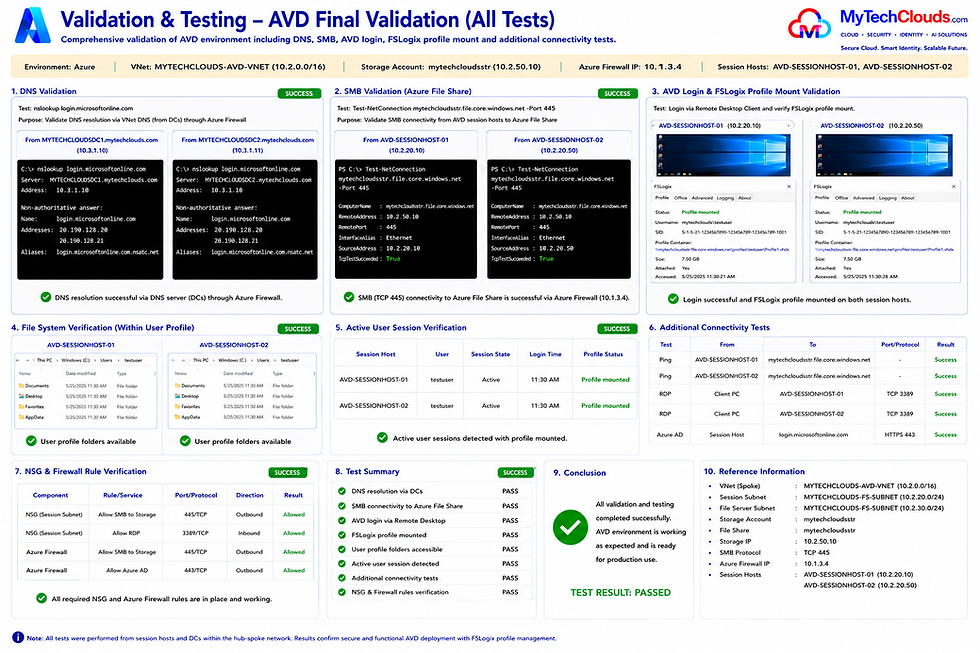
DNS Validation
DNS resolution was successfully validated from both session hosts using the enterprise DNS architecture. DNS queries were routed through Azure Firewall DNS Proxy (10.1.3.4) and resolved by the Domain Controllers (10.3.1.10 and 10.3.1.11). Microsoft cloud endpoints such as login.microsoftonline.com resolved successfully, confirming proper name resolution and connectivity to Microsoft services.
SMB Validation (Azure File Share)
SMB connectivity to the Azure Files Premium storage account (mytechcloudsdvstr – 10.2.50.10) was verified using TCP Port 445. Both session hosts successfully connected to the Azure File Share through Azure Firewall, confirming that FSLogix profile storage is accessible and operational.
AVD Login & FSLogix Profile Validation
Users successfully authenticated to Azure Virtual Desktop and established active sessions on both session hosts. During login, FSLogix profile containers were mounted successfully from the Azure File Share, providing persistent user profiles and ensuring a consistent user experience across sessions.
User Session Validation
Active user sessions were verified on both AVD session hosts. Profile containers were mounted correctly, user desktops loaded successfully, and no authentication or profile-related issues were detected.
Network Connectivity Validation
Additional connectivity tests confirmed successful communication between:
Session Hosts and Azure Files Storage
Session Hosts and Microsoft Entra ID
Session Hosts and Azure Virtual Desktop Control Plane
Client Devices and Session Hosts
Session Hosts and Required Microsoft Services
All required outbound and inbound connections were functioning as expected.
NSG and Firewall Validation
Network Security Groups (NSGs) and Azure Firewall rules were verified to ensure secure communication. Required ports such as TCP 445 (SMB) and HTTPS 443 were permitted, while security controls remained enforced to protect the environment from unauthorized access.
Conclusion
The Azure Virtual Desktop environment has successfully passed all validation and testing activities. DNS services, Azure Files connectivity, user authentication, FSLogix profile management, Azure Firewall policies, and network security controls are functioning correctly. The environment is fully operational, secure, and ready to support production workloads.
Accessing Azure Virtual Desktop Session Hosts Using the AVD Web Client
This validation demonstrates the complete end-to-end user access process for Azure Virtual Desktop (AVD), starting from the Microsoft AVD Web Client URL and ending with a fully loaded desktop session with the user's FSLogix profile attached.
Users access Azure Virtual Desktop through the Microsoft AVD Web Client URL and authenticate using Microsoft Entra ID credentials. After successful authentication, the assigned AVD workspace and published desktop become available. When the user launches the desktop, Azure Virtual Desktop automatically selects an available session host from the pooled host pool using the configured Breadth-First Load Balancing method.

User Access Flow
User opens the Microsoft AVD Web Client.
User signs in using Microsoft Entra ID credentials.
Authentication is validated against the MyTechClouds tenant.
The assigned AVD Workspace (MyTechClouds-AVD-Workspace) is displayed.
User launches the published desktop (MyTechClouds Desktop).
Azure Virtual Desktop assigns an available session host from:
AVD-SESSIONHOST-01 (10.2.20.10)
AVD-SESSIONHOST-02 (10.2.20.11)
Windows sign-in is completed on the selected session host.
FSLogix connects to the Azure Files profile container.
User profile is mounted and loaded.
The Windows desktop becomes available and ready for use.
Session Host Assignment
The environment uses a Pooled Host Pool (AVD-POOL-01) configured with Breadth-First Load Balancing, ensuring users are distributed evenly across available session hosts to optimize resource utilization and performance.
DNS and Authentication Validation
During the login process, session hosts use the configured DNS infrastructure:
Azure Firewall DNS Proxy: 10.1.3.4
Domain Controller 1: 10.3.1.10
Domain Controller 2: 10.3.1.11
DNS queries are forwarded through Azure Firewall and resolved by the Domain Controllers, enabling successful authentication to Microsoft Entra ID and access to Azure Virtual Desktop services.
FSLogix Profile Loading
After login, FSLogix automatically mounts the user profile from the Azure Files Premium storage account:
Storage Account: mytechcloudsdvstr
File Share: profiles
Storage IP: 10.2.50.10
Protocol: SMB (TCP 445)
This ensures that user settings, documents, and application configurations follow the user regardless of which session host is assigned.
Conclusion
The validation confirms that users can successfully access Azure Virtual Desktop using the Microsoft AVD Web Client, authenticate through Microsoft Entra ID, connect to an available session host, and load their FSLogix profile from Azure Files storage. The complete login process operates successfully, validating end-to-end AVD functionality and readiness for production use.
Validation & Testing – Complete Traffic Flow from Client PC to Azure Virtual Desktop Session Hosts
This validation demonstrates the complete end-to-end communication flow when a user accesses Azure Virtual Desktop (AVD) using the Microsoft-hosted AVD Web Client. The process includes user authentication through Microsoft Entra ID, desktop assignment through the AVD Control Plane, DNS resolution, session host connectivity, FSLogix profile loading, and Group Policy application from Active Directory Domain Services (AD DS).

User Access and Authentication Flow
The user launches the Microsoft AVD Web Client from a corporate or remote device and connects to the Microsoft-hosted Azure Virtual Desktop service over HTTPS (TCP 443). Authentication is performed through Microsoft Entra ID, where the user credentials are validated and a secure access token is issued.
Once authenticated, the user is presented with the assigned MyTechClouds-AVD-Workspace and published desktop resources.
AVD Broker and Session Host Assignment
After the user launches the desktop, the Azure Virtual Desktop Broker Service selects an available session host from the pooled host pool:
AVD-SESSIONHOST-01 (10.2.20.10)
AVD-SESSIONHOST-02 (10.2.20.11)
The environment uses Breadth-First Load Balancing, ensuring user sessions are distributed evenly across available hosts.
DNS Resolution Process
Session hosts use VNet-level DNS settings configured to point to Azure Firewall DNS Proxy (10.1.3.4).
DNS requests follow this path:
Session Host → Azure Firewall DNS Proxy → Domain Controllers (10.1.1.10 / 10.1.1.20 or Azure DCs 10.3.1.10 / 10.3.1.11) → DNS Response
This architecture provides centralized DNS management, logging, and security inspection.
User Logon and AD Authentication
Once assigned to a session host, the user signs into Windows using Active Directory credentials. Authentication traffic is sent to the Domain Controllers using:
Kerberos (TCP/UDP 88)
LDAP (TCP 389)
SMB (TCP 445)
The Domain Controllers validate the user identity and complete the Windows logon process.
FSLogix Profile Loading
After successful authentication, FSLogix mounts the user profile from the Azure Files Premium storage account.
Storage Configuration:
Storage Account: mytechcloudsdvstr
File Share: profiles
Storage IP: 10.2.50.10
Protocol: SMB 3.0 (TCP 445)
The profile container is attached automatically, providing a persistent user experience regardless of the session host assigned.
Group Policy Processing
Following user authentication, Active Directory Group Policies are applied from the AD DS server. These policies may include:
Desktop and Start Menu configurations
Security settings
Drive and printer mappings
Administrative Templates
User environment settings
Application restrictions
This ensures consistent configuration and security across all AVD user sessions.
Network and Security Controls
The communication path is secured using:
Azure Firewall (10.1.3.4)
Network Security Groups (NSGs)
Microsoft Entra ID Authentication
Azure Virtual Desktop Gateway
Active Directory Authentication Services
Azure Files SMB Access Controls
All outbound internet traffic from Azure workloads is routed through Azure Firewall for centralized inspection and monitoring.
Ports and Protocols Used
Service | Port / Protocol |
HTTPS (AVD Web Client, Entra ID) | TCP 443 |
AVD Reverse Connect | TCP 443 |
SMB (FSLogix Profile Storage) | TCP 445 |
LDAP | TCP 389 |
Kerberos | TCP/UDP 88 |
DNS | TCP/UDP 53 |
Validation Outcome
The complete traffic flow was successfully validated from the client device through Microsoft Entra ID, Azure Virtual Desktop Control Plane, Session Hosts, Active Directory Domain Services, Azure Files storage, and Azure Firewall. DNS resolution, user authentication, profile loading, session connectivity, and Group Policy processing completed successfully.
Conclusion
The validation confirms a fully functional Azure Virtual Desktop deployment where users securely access published desktops through the Microsoft-hosted AVD Web Client. Authentication is performed through Microsoft Entra ID and Active Directory, DNS resolution is centralized through Azure Firewall, FSLogix profiles are loaded from Azure Files storage, and Group Policies are applied from AD DS. The complete end-to-end user workflow operates successfully and is ready for production workloads.
Important Enterprise Best Practices
To ensure a secure, scalable, and production-ready Azure Virtual Desktop (AVD) environment, the following enterprise best practices should be implemented throughout the deployment lifecycle:
Avoid Public Exposure: Never assign Public IP addresses directly to AVD Session Hosts. Access should be provided through the Azure Virtual Desktop service and Azure Bastion when administrative access is required.
Use Private Endpoints: Configure Private Endpoints for Azure Files, Storage Accounts, Key Vault, and other critical services to eliminate public internet exposure and improve security.
Enable Azure Firewall DNS Proxy: Centralize DNS resolution through Azure Firewall DNS Proxy to provide consistent name resolution, DNS logging, security inspection, and policy enforcement.
Use Premium Storage: Deploy Premium SSD managed disks for Session Hosts and Premium Azure Files storage for FSLogix profile containers to ensure optimal performance and user experience.
Implement Backup and Recovery: Enable Azure Backup for Domain Controllers, Session Hosts, Azure Files shares, and critical workloads to ensure business continuity and disaster recovery readiness.
Configure Autoscaling: Use Azure Virtual Desktop Scaling Plans to automatically start and stop Session Hosts based on user demand, reducing operational costs while maintaining performance.
Centralized Monitoring: Deploy Azure Monitor, Log Analytics Workspace, VM Insights, and Azure Monitor Agent to collect logs, metrics, performance data, and security events across the environment.
Enable Security Services: Implement Microsoft Defender for Cloud, Conditional Access with MFA, Network Security Groups (NSGs), Azure Firewall, and DDoS Protection to strengthen the security posture.
Validate DNS and Routing: Verify DNS resolution, VPN connectivity, VNet peering, User Defined Routes (UDRs), and firewall policies before deploying Session Hosts to avoid authentication and connectivity issues.
Follow Least Privilege Access: Use Azure RBAC and the Principle of Least Privilege to grant only the permissions required for users, administrators, and applications.
Maintain Golden Images: Use standardized Windows 11 Enterprise Multi-Session golden images to simplify deployments, maintain consistency, and reduce provisioning time.
Regular Health Checks: Periodically validate AVD login functionality, FSLogix profile mounting, SMB connectivity, DNS resolution, firewall logs, and security recommendations to ensure ongoing operational health.
Conclusion
Following these enterprise best practices helps build a secure, highly available, scalable, and cost-optimized Azure Virtual Desktop platform. Proper implementation of networking, security, monitoring, backup, and governance controls ensures a resilient production environment capable of supporting enterprise workloads while maintaining compliance and operational excellence.
About MyTechClouds

Empowering Businesses Through Cloud, Security, Identity & AI Solutions
MyTechClouds is a technology consulting and managed services company specializing in Cloud Infrastructure, Cyber Security, Identity & Access Management, Azure Virtual Desktop (AVD), Microsoft Azure, Microsoft 365, DevOps, AI Solutions, and Digital Transformation services.
We help organizations design, deploy, secure, monitor, and optimize enterprise-grade cloud environments while ensuring scalability, operational excellence, and security best practices. Our team delivers end-to-end solutions ranging from cloud migrations and modern workplace implementations to security hardening, governance, monitoring, and managed services.
Our Core Services
Microsoft Azure Consulting & Managed Services
Azure Virtual Desktop (AVD) Design & Deployment
Cloud Architecture & Landing Zones
Cyber Security & Security Operations
Identity & Access Management (Entra ID / Active Directory)
Microsoft 365 & Collaboration Solutions
DevOps & Infrastructure Automation
Backup, Disaster Recovery & Business Continuity
Monitoring, Logging & Observability
AI & Intelligent Automation Solutions
Why MyTechClouds?
Enterprise Architecture Expertise
Security-First Approach
Proven Cloud Transformation Experience
Scalable & Cost-Optimized Solutions
End-to-End Implementation & Support
Industry Best Practices & Governance
Contact Information
🌐 Website: www.mytechclouds.com
📧 Email: info@mytechclouds.com
📞 Phone: +91 7982628512
Thank you for reviewing this Azure Virtual Desktop (AVD) Architecture, Deployment, Security, Monitoring & Validation Guide. For consulting, implementation, assessment, migration, or managed services support, please contact the MyTechClouds team.
Comments