
Building an Automated Azure FinOps Dashboard with Azure Cost Management, Azure Storage & Power BI | MyTechClouds
Summary:
Introduction
Lab Details
Solution Architecture
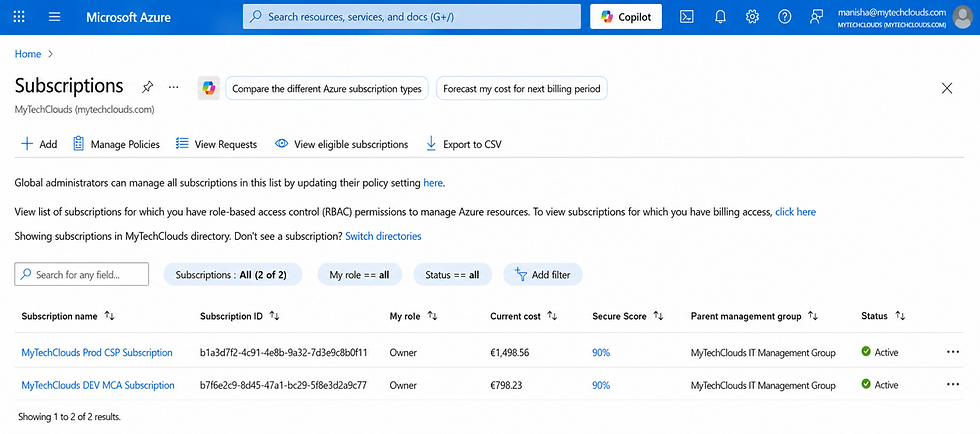
Verify Azure Subscriptions
Configure Storage
Configure Service Account & Permissions
Power BI Integration
Configure Cost Exports & Datasets (PowerBI)
Dashboard Creation
Outcome
Introduction
Cloud cost management has become a critical component of modern IT operations as organizations continue to expand their workloads across cloud platforms. While Microsoft Azure provides powerful capabilities for scalability, security, and innovation, controlling and understanding cloud spending requires a structured FinOps approach.
This document demonstrates how to build an end-to-end Azure FinOps reporting solution using Azure Cost Management, Azure Storage, Microsoft Entra ID, and Power BI Service (Microsoft Fabric). The objective is to automate Azure billing exports, centralize cost data, and provide business stakeholders with actionable insights through interactive dashboards and visual reports.
The implementation covers the complete lifecycle of Azure cost reporting, including subscription validation, Azure Cost Management exports, storage configuration, role-based access control, data transformation, semantic model creation, Power BI integration, and dashboard development.
By following this approach, organizations can:
1. Gain visibility into Azure spending across subscriptions and resources.
2. Automate cost reporting and eliminate manual data collection.
3. Analyze spending trends and forecast future cloud costs.
4. Track costs by subscription, resource group, service, and individual resources.
5. Improve financial governance and cloud cost optimization.
6. Enable data-driven decision-making through executive dashboards.
Environment/Resource Details
Tenant Name
MyTechClouds
Domain
Administrative Account: manisha@mytechclouds.com
Service Account: mytechclouds-finops@mytechclouds.com
Azure Storage Configuration:
Azure Cost Management reports are exported to Azure Blob Storage for centralized storage and reporting.
Storage Account: strgfinopsprod
Storage Type: Azure Blob Storage
Container Name: mytechclouds-sub-monthly-cost
Directory Structure:
Production Reports Directory : prod-csp-subscriptions-cost-export
Development Reports Directory : nonprod-mca-subscriptions-cost-export
Power BI Environment
Microsoft Fabric (Power BI Service) is used for data transformation, semantic modeling, and dashboard creation.
Platform: Power BI Service (Microsoft Fabric)
Workspace Name: MyTechClouds-FinOps
Authentication Method: Microsoft Entra ID
Data Source: Azure Blob Storage
Refresh Type: Scheduled Refresh
For this implementation, two Azure subscriptions are used:
1. MyTechClouds Prod CSP Subscription
2. MyTechClouds DEV MCA Subscription
The exported cost data is stored in Azure Blob Storage and consumed by Power BI Service to create a centralized Azure FinOps Dashboard that provides near real-time visibility into cloud spending and resource utilization.
This solution serves as a practical reference architecture for organizations looking to implement Azure FinOps practices and establish a scalable cloud cost management framework.
Architectural Design: - Overall flow & Connectivity

Storage Account:
To store Azure Cost Management export reports, an Azure Storage Account was created within the Production subscription. The storage account serves as the centralized repository for all Azure cost and usage datasets that will later be consumed by Power BI Service for reporting and visualization.
For this implementation, the storage account strgfinopsprod was deployed in the EUGWC-HUB-PROD-CSP-SUB resource group under the MyTechClouds Prod CSP Subscription. The storage account uses Locally Redundant Storage (LRS) to provide cost-effective and reliable storage for FinOps reporting data.
Storage Account Configuration Details
1. Storage Account: strgfinopsprod
2. Subscription: MyTechClouds Prod CSP Subscription
3. Resource Group: EUGWC-HUB-PROD-CSP-SUB
4. Region: Germany West Central
5. Replication: Locally Redundant Storage (LRS)
6. Owner: Manisha Sharma
7. Purpose: Store Azure Cost Management export files for Power BI reporting
The storage account acts as the central data repository where monthly Azure cost exports are automatically stored before being processed and visualized within Power BI Service. This approach enables secure, scalable, and automated Azure FinOps reporting across multiple subscriptions.

Blob Storage Container
A dedicated Azure Blob Storage container was created to store Azure Cost Management export files. This container serves as the destination for all monthly Azure cost and usage reports generated by Azure Cost Management.
Configuration
Container Name: mytechclouds-sub-monthly-cost
Access Level: Private (No anonymous access)
Storage Account: strgfinopsprod
Using a private container ensures that cost and billing data remains secure and can only be accessed by authorized users and services through Azure RBAC permissions. This container will be used as the centralized repository for Power BI FinOps reporting and analytics.


Create a Dedicated Microsoft Entra ID Service Account:
To enable secure integration between Azure Storage and Power BI Service, a dedicated Microsoft Entra ID service account was created. This account is used exclusively for accessing Azure Cost Management export data stored in Azure Blob Storage and prevents the use of personal administrator accounts for reporting workloads.
Service Account Details
User Principal Name (UPN): mytechclouds-finops@mytechclouds.com
Display Name: mytechclouds-finops
Tenant: MyTechClouds (MyTechClouds.com)
Account Type: Internal Entra ID User
Purpose: Power BI Service Authentication
Storage Access Configuration
After the account was created, Azure RBAC permissions were assigned on the storage account strgfinopsprod.
Assigned Role:
Storage Blob Data Reader
Scope:
Storage Account: strgfinopsprod
Why this Account is Required ?
Using a dedicated service account provides a secure and manageable approach for Power BI connectivity. The account is granted only the permissions required to read cost export files from Azure Storage, following the principle of least privilege.
This account will later be used by Power BI Service to:
Authenticate against Azure Storage
Access monthly cost export files
Refresh datasets automatically
Power Azure FinOps dashboards and reports
This approach improves security, simplifies administration, and ensures that reporting processes remain independent of individual administrator accounts.


Mytechclouds-finops@mytechclouds.com Service Account have been setup as shown above & required access have been granted on storage account (strgfinopsprod)
Access Azure Cost Management + Billing
Navigate to Cost Management + Billing from the Azure Portal. This service provides centralized visibility into Azure spending, billing information, budgets, exports, and cost optimization recommendations.
The Cost Management service will be used to generate automated cost and usage reports for both Azure subscriptions and store them in Azure Blob Storage for Power BI reporting.

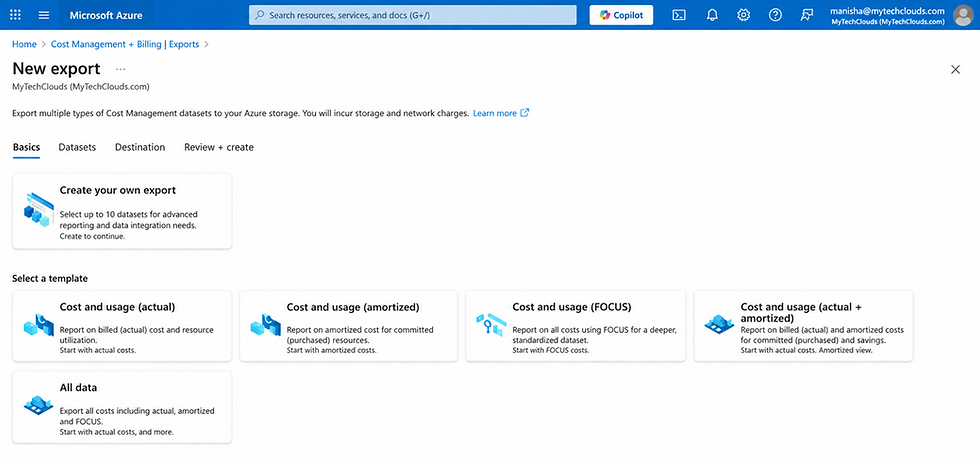
Select the Scope in which you have your subscriptions & create new Export – If you have multiple subscriptions your report will be consolidated including all subscptions, You can create a separate dataset as well for each subscription like Prod-Non Prod.
Create a New Cost Export
From Cost Management + Billing, navigate to:
Cost Management + Billing → Exports → Create Export
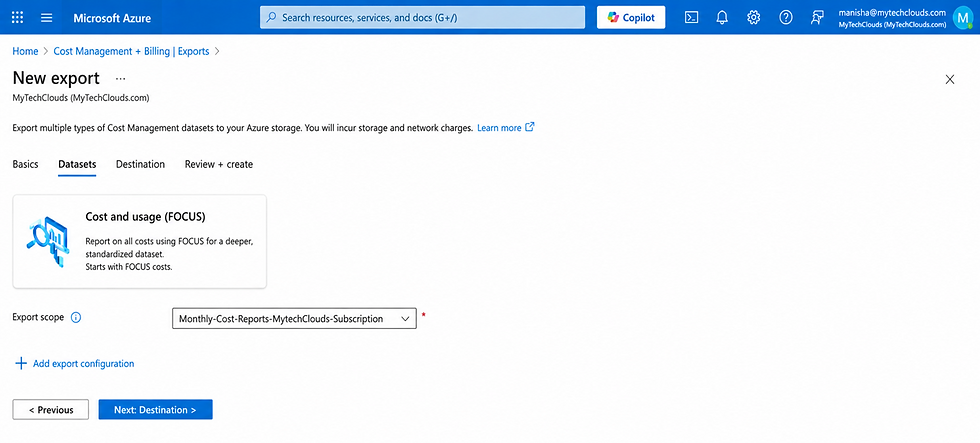
Select Cost and Usage (FOCUS) as the dataset type and provide an export name.
Monthly-Cost-Reports-MytechClouds-Subscription:
The FOCUS dataset provides detailed cost information including subscription, resource group, service, resource, location, and billing data required for Power BI dashboards.
Azure provides multiple export templates for different reporting requirements. For this implementation, the export will be configured using the Cost and Usage (FOCUS) dataset, which provides standardized FinOps reporting data for cost analysis and chargeback reporting.
Configure Export Destination
Configure Azure Blob Storage as the export destination.
Configuration
Subscription: MyTechClouds DEV MCA Subscription
Storage Account: strgfinopsprod
Container: mytechclouds-sub-monthly-cost
Directory: nonprod-mca-subscriptions-cost-exports
Format: CSV
Compression: GZip
The exported files will be stored automatically in Azure Blob Storage and will later be consumed by Power BI Service for reporting and visualization.
This configuration enables automated monthly export of Azure billing and consumption data while maintaining a centralized repository for FinOps analytics.

Export Directories
After configuring the Azure Cost Management exports, dedicated directories were created within the Blob Storage container to organize cost reports by subscription.
Why Separate Directories?
Maintaining separate directories for Production and Development subscriptions provides:
Better organization of export files
Simplified reporting and troubleshooting
Easier subscription-level analysis
Improved data governance and management
This structure ensures that Azure Cost Management exports are stored in a consistent and scalable manner, making it easier for Power BI Service to consume and analyze the data for Azure FinOps reporting.

You can use cold Tier if you don’t have to access data frequently to save cost.
Now run the datasets to export the cost of each resource:
Verify Azure Cost Management Export Configuration
After completing the export configuration, verify that the Azure Cost Management export has been successfully created and is in an active state.
The export should appear under:
Cost Management + The export should appear under:
Billing → Exports
Export Details:-
Export Name: Monthly-Cost-Reports-MytechClouds-Subscription
Dataset Type: Cost and Usage Details (FOCUS)
Schedule Status: Active
Frequency: Monthly
Dataset Version: 1.0r2
Scope: MyTechClouds
Purpose
This export configuration automates the collection of Azure billing and consumption data and stores the reports in Azure Blob Storage on a scheduled basis. Once generated, the exported files can be consumed directly by Power BI Service to create FinOps dashboards and cost analytics reports.
At this stage, the export configuration is active and ready to generate monthly Azure cost reports for reporting, forecasting, and cost optimization activities.
Review Export Configuration and Run History
Once the export has been configured, review the export settings to ensure all storage and scheduling parameters are correct before the first execution.
The export configuration contains details about the billing scope, storage destination, file format, and scheduling settings used for Azure Cost Management reporting.

Please Note:
We have created this data set for MyTechClouds-DEV-MCA-Subscription, For Prod CSP Subscription Please use the same dataset & make sure you have a different Directory. So that you have reports fetched automatically in different containers.
You can fetch the reports in single directory as well. You need to select Multiple Subscriptions while selecting from the scope level

On Click Run Now.
Once this run is complete you can get the report from Container. We have run the export for both the subscriptions & reports will be fetched in different directories as shown below for the both the subscriptions differently.
Validate Export Execution and Storage Location
After the export configuration was completed, the export was executed successfully and Azure Cost Management generated the first cost report files in the configured Azure Storage Account.
The export status can be verified from the Run History section, which confirms successful execution and report generation.

Outcome
At this stage, the Azure FinOps data pipeline is fully operational:
Azure Cost Management exports billing data automatically.
Reports are stored securely in Azure Blob Storage.
Separate directories maintain Production and Development subscription data.
Power BI Service can now connect directly to Azure Storage and consume the exported datasets for reporting and visualization.
This completes the Azure Cost Export configuration phase and prepares the environment for Power BI dashboard development.
Sample Report

Steps for Integration of Power BI Service (with MyTechClouds) Storage:
We can use PowerBi Desktop as well but our data reside in Azure so we will use PowerBi Service (Fabric):
Create a Dedicated Power BI Workspace
After Azure Cost Management exports have been configured and cost data is being stored in Azure Blob Storage, the next step is to create a dedicated Power BI workspace to host datasets, dataflows, reports, dashboards, and semantic models.
Since the cost export files reside in Azure Storage and require scheduled refresh capabilities, Power BI Service (Microsoft Fabric) is used instead of relying solely on Power BI Desktop.
Why Power BI Service?
Power BI Service provides:
Cloud-native data integration
Scheduled refresh capabilities
Centralized report management
Dataflow and Semantic Model support
Secure Azure Storage connectivity
Enterprise-grade sharing and governance
Steps:
Open Power BI Service: - https://app.powerbi.com
Sign in using the Power BI account: mytechclouds-finops@mytechclouds.com
Navigate to: Workspaces → Create Workspace
Create a dedicated workspace: Workspace Name: MyTechClouds-FinOps
Add a meaningful description: FinOps reporting workspace for Azure cost and usage analytics
Save the workspace.
Workspace Components

The workspace will be used to host the following FinOps assets:
Outcome
A dedicated MyTechClouds-FinOps workspace is created within Power BI Service, providing a centralized location for Azure FinOps reporting, governance, and cost analytics. This workspace will serve as the foundation for building enterprise-grade Azure Cost Management dashboards using data exported from Azure Blob Storage.

Create a Dataflow and Connect Azure Blob Storage
To automate Azure FinOps reporting, a Dataflow Gen2 is created within the MyTechClouds-FinOps workspace. The Dataflow will connect directly to Azure Blob Storage and ingest Azure Cost Management export files for transformation and reporting.
Using Dataflow Gen2 enables centralized data preparation, scheduled refreshes, and reuse of data across multiple Power BI reports and dashboards.
Procedure
Open the MyTechClouds-FinOps workspace.
Click: New → Dataflow Gen2
From the list of available connectors, select: Azure Blob Storage
Authenticate using the dedicated FinOps account: mytechclouds-finops@mytechclouds.com
Ensure the account has the required RBAC permissions on the storage account: Storage Blob Data Reader
Azure Storage Details


Click Connect to Azure Blob Storage Account - https://strgfinopsprod.blob.core.windows.net & authenticate with mytechclouds-finops@mytechclouds.com


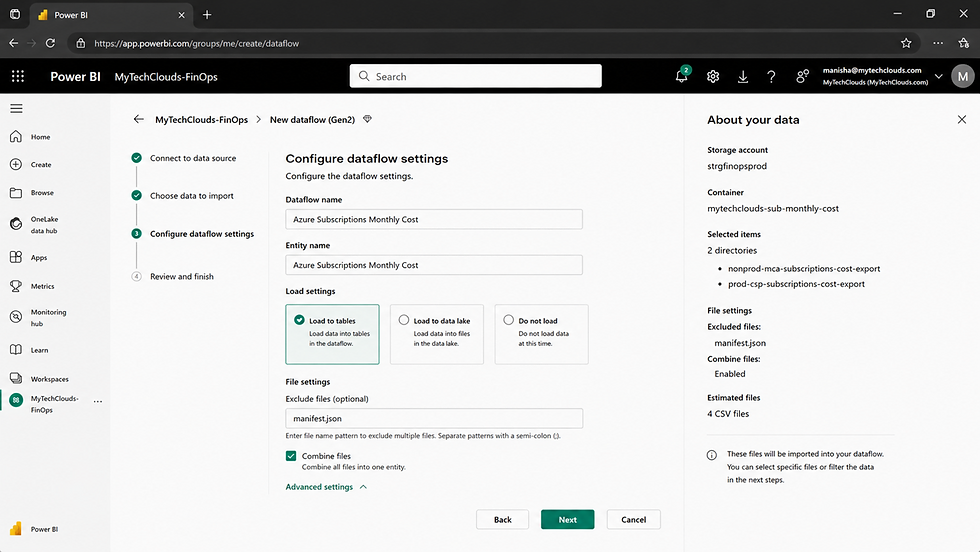
Configure Dataflow Settings and Combine Azure Cost Export Files
After connecting to Azure Blob Storage and selecting the export directories, configure the Dataflow settings to consolidate all Azure Cost Management export files into a single reporting dataset.
This step enables Power BI Service to automatically combine cost data from both Azure subscriptions and prepare it for transformation and dashboard reporting.
Dataflow Configuration
1. Dataflow Name: Azure Subscriptions Monthly Cost
2. Entity Name: Azure Subscriptions Monthly Cost
3. Load Settings: Load to tables
This option loads the imported data directly into the Dataflow table for further transformation and reporting.
File Configuration
1. Exclude Files: manifest. Json
The manifest file contains metadata about the export process and is not required for reporting purposes.
2. Combine File: Enabled
Storage Locations: Germany West Central
Storage Account: strgfinopsprod
Container: mytechclouds-sub-monthly-cost
Directories: nonprod-mca-subscriptions-cost-export
prod-csp-subscriptions-cost-export
Benefits of Combining Files
Consolidates cost data from multiple subscriptions
Simplifies Power BI reporting
Eliminates manual file processing
Supports automatic refreshes
Creates a centralized FinOps dataset
Outcome
At the end of this step, Power BI Dataflow Gen2 is configured to automatically ingest and combine Azure Cost Management export files from both MyTechClouds subscriptions. The resulting dataset will be used for data transformation, semantic modeling, DAX calculations, and Azure FinOps dashboard creation.


Outcome
At the end of this step, Power BI Service is successfully connected to Azure Blob Storage and is ready to ingest Azure Cost Management export data for transformation, modeling, and dashboard creation. This establishes the foundation for automated Azure FinOps reporting within Microsoft Fabric.
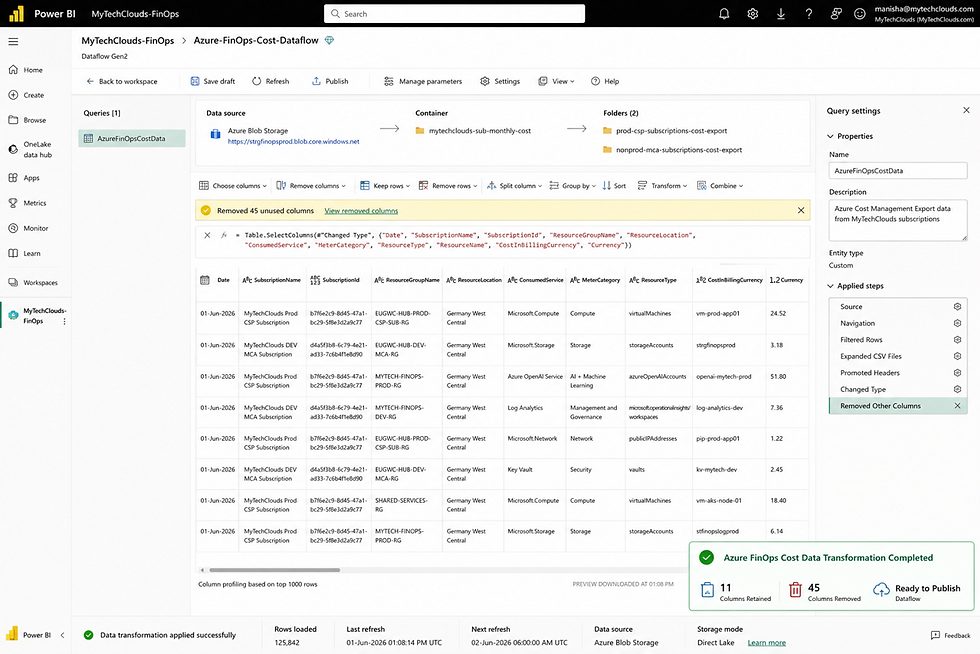
Transform and Prepare Azure Cost Data
After importing the Azure Cost Management export files into the Dataflow, the next step is to transform and prepare the data for reporting and visualization.
The objective of this step is to retain only the business-relevant FinOps fields required for cost analysis while removing unnecessary columns from the Azure export dataset.
Data Transformation Activities:
The imported Azure Cost Management dataset contains numerous billing and metadata fields. To optimize performance and simplify reporting, unused columns are removed.
Retained Columns
The following columns are retained for Azure FinOps reporting:

Transformation Summary
Removed unnecessary billing metadata fields
Standardized column names
Combined data from multiple subscriptions
Optimized dataset for Power BI reporting
Reduced dataset complexity and improved refresh performance
Dataflow Configuration
Dataflow Name: Azure-FinOps-Cost-Dataflow
Entity Name: AzureFinOpsCostData
Transformation Results: - Please Not we need to enable Data lake on the storage as we had to use Semantic

Outcome
The Azure Cost Management export data has been successfully transformed into a clean FinOps dataset containing only the fields required for cost reporting, subscription analysis, resource optimization, and forecasting.
The Dataflow is now ready to be published and used as the foundation for creating the Power BI Semantic Model, DAX measures, and Azure FinOps dashboards.
Create the Semantic Model and Calendar Table
After publishing the Dataflow, the next step is to create a Semantic Model in Power BI Service. The Semantic Model serves as the centralized dataset layer that powers all Azure FinOps reports, dashboards, KPIs, and DAX calculations.
A dedicated Calendar table is also created to support time intelligence calculations such as Month-to-Date (MTD), Previous Month Cost, Cost Variance, Year-to-Date (YTD), and Forecasting.
Create Semantic Model
Navigate to:
MyTechClouds-FinOps Workspace
→ Azure-FinOps-Cost-Dataflow
→ Create Semantic Model
Create the Semantic Model with the following details:
Create Calendar Table
To enable advanced time-based reporting, create a Calendar table using DAX.
The Calendar table contains:
Date
Year
Quarter
Month Number
Month Name
Day
Weekday Number
Weekday Name
Is Weekday
Is Weekend
Is Current Month
Is Current Year
This table provides a standardized date dimension for all cost reporting and trend analysis.
Create Relationship:
Create a relationship between the Calendar table and CostData table.
Relationship Configuration
Cardinality: One-to-Many (1:*)
Cross Filter Direction: Single
Status: Active
Benefits of the Semantic Model
The Semantic Model provides:
Centralized Azure FinOps dataset
Reusable data model for multiple reports
Time intelligence calculations
Improved reporting performance
Standardized business metrics
Consistent KPI calculations across dashboards
Outcome
At the end of this step, the Azure-FinOps-Cost-SemanticModel is successfully created and connected to the transformed Azure Cost Management dataset. The Calendar table and Date relationship provide the foundation for building DAX measures, cost forecasting models, trend analysis, and executive Azure FinOps dashboards.

Create DAX Measures for Azure FinOps Reporting
After creating the Semantic Model and establishing relationships, the next step is to create DAX measures that will power the Azure FinOps dashboards, KPIs, trend analysis, and forecasting reports.
These measures provide the business logic required for monitoring Azure spend across subscriptions, resource groups, services, and individual resources.
Key DAX Measures Created
The following measures were created within the Azure-FinOps-Cost-SemanticModel:
Benefits of DAX Measures
These calculations enable:
Executive cost dashboards
Monthly spend tracking
Subscription cost comparison
Resource optimization analysis
Service-level cost breakdown
Cost trend monitoring
Budget forecasting
FinOps governance reporting
Semantic Model Statistics
Data Refresh Configuration
Data Source: Azure-FinOps-Cost-Dataflow
Refresh Schedule: Daily at 06:00 AM UTC
Storage Mode: Import
Outcome
At the end of this step, all required Azure FinOps measures have been successfully created and validated within the Semantic Model. These measures will be used to build executive dashboards, subscription cost reports, resource optimization views, and forecasting models in Power BI Service. The semantic layer is now fully prepared for visualization and dashboard development.

Final Dashboard & Reporting Visualization:
After creating the Semantic Model and DAX measures, the final step is to build the Azure FinOps Executive Dashboard. This dashboard provides a centralized view of Azure spending, subscription utilization, cost trends, and key FinOps metrics across the MyTechClouds environment.
The dashboard is designed for Cloud Administrators, FinOps teams, IT Management, and Business Stakeholders to monitor Azure consumption and identify cost optimization opportunities.
Dashboard Objectives
The Executive Summary dashboard provides:
Real-time Azure cost visibility
Subscription-level cost analysis
Cost trend monitoring
Month-over-Month variance tracking
Resource utilization insights
Executive-level FinOps reporting
Dashboard Filter
The following slicers were added to enable dynamic filtering:
Billing Account
Subscription
Resource Group
Date Range
These filters allow users to analyze Azure spend across different subscriptions, resource groups, and reporting periods.
Key Performance Indicators (KPIs)
The dashboard includes the following KPI cards:
Monthly Cost Trend Analysis
A trend chart was created to visualize:
Historical Azure spend
Cost growth patterns
Forecasted monthly spend
Budget consumption trends
This visual helps identify spending patterns and future cost projections.
Subscription Cost Overview
A detailed subscription comparison table was added to display:
MyTechClouds Prod CSP Subscription
Subscription ID: b1a3d7f2-4c91-4e8b-9a32-7d3e9c8b0f11
Current Cost: €1,505
Previous Cost: €1,430
Variance: €75
MyTechClouds DEV MCA Subscription
Subscription ID: b7f6e2c9-8d45-47a1-bc29-5f8e3d2a9c77
Current Cost: €900
Previous Cost: €850
Variance: €50
Dashboard Benefits
The Azure FinOps Executive Dashboard enables:
Executive cost reporting
Subscription cost comparison
Cost governance and accountability
Budget planning and forecasting
Resource optimization analysis
FinOps maturity and cost transparency
Final Dashboard :

📧 Email: info@mytechclouds.com
🌐 Website: www.mytechclouds.com
🚀 Contact Us: https://www.mytechclouds.com/contacts



Comments